Disable Startup Programs Windows 11 (Complete 2026 Guide)
If your computer takes too long to boot, learning how to disable startup programs in Windows 11 can instantly improve performance. Many apps automatically launch when your PC starts, slowing boot time and consuming memory.
Quick Answer: To disable startup programs in Windows 11, open Settings → Apps → Startup and turn off unnecessary apps. You can also use Task Manager to disable high-impact startup programs slowing your boot time.
This guide shows beginner-friendly and advanced methods to manage startup apps and fix Windows 11 slow startup issues permanently.
Why Is Windows 11 Slow on Startup?
Several factors cause Windows 11’s slow startup:
Too many startup apps
High startup impact programs
Cloud sync tools launch automatically
Background update services
Traditional HDD instead of SSD
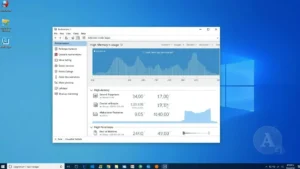
In Windows 11, Microsoft allows users to view startup impact directly in Task Manager, making it easier to identify performance-heavy applications.

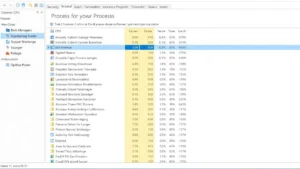
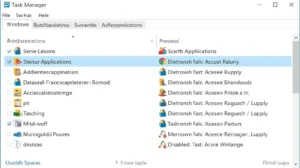
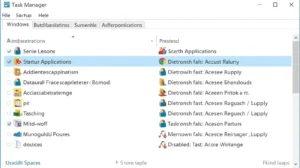
Disable Startup Apps Windows 11 with Task Manager
Task Manager provides deeper control and shows startup impact levels.
Steps:
-
Press Ctrl + Shift + Esc
-
Open Startup Apps
-
Right-click an app
-
Select Disable
This method is ideal when you want to improve boot time in Windows 11 efficiently.
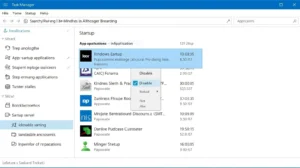
How to Check Startup Impact in Windows 11
Inside Task Manager, you’ll see a column labeled Startup Impact:
-
High
-
Medium
-
Low
-
Not Measured
High-impact apps significantly increase boot time. Disabling them produces noticeable improvements.
Clean Boot vs Disable Startup Programs Windows 11
Many users confuse these two features.
| Feature | Disable Startup Programs | Clean Boot |
|---|---|---|
| Purpose | Improve boot speed | Troubleshoot software conflicts |
| Difficulty | Easy | Advanced |
| Risk | Very Low | Moderate |
| Best For | Performance boost | Fixing system errors |
A clean boot temporarily disables non-Microsoft services. Disabling startup programs is safer for general performance optimization.
What Startup Programs Are Safe to Disable?
Generally safe:
-
Spotify
-
Discord
-
Zoom
-
Steam
-
Adobe Creative Cloud
Avoid disabling:
-
Antivirus software
-
Device drivers
-
Security services
-
Microsoft system tools
For official documentation, refer to Microsoft support resources.
Advanced Tips to Improve Boot Time Windows 11
Beyond disabling startup programs Windows 11:
-
Enable Fast Startup
-
Upgrade HDD to SSD
-
Increase RAM
-
Remove bloatware
-
Keep drivers updated
-
Scan for malware
For technical performance guidance, consult Microsoft Learn.
Conclusion
Mastering how to disable startup programs in Windows 11 is one of the fastest and safest ways to fix slow startup issues. By removing high-impact apps, managing startup settings, and optimizing your system, you can dramatically improve boot speed without installing extra software.
Take five minutes today to review your startup apps — your PC will boot faster immediately.
FAQ – Disable Startup Programs Windows 11
Is it safe to disable startup programs in Windows 11?
Yes, as long as you avoid disabling essential system or security applications.
Does disabling startup apps improve performance?
Yes. It reduces boot time and frees CPU and RAM resources.
Why do apps turn startup back on?
Some applications re-enable startup permissions after updates. Check app settings.
What startup programs should I disable?
Disable non-essential apps like music players, chat apps, and auto-launch utilities.
Can too many startup apps damage my PC?
Not physically, but they significantly reduce performance and increase boot time.