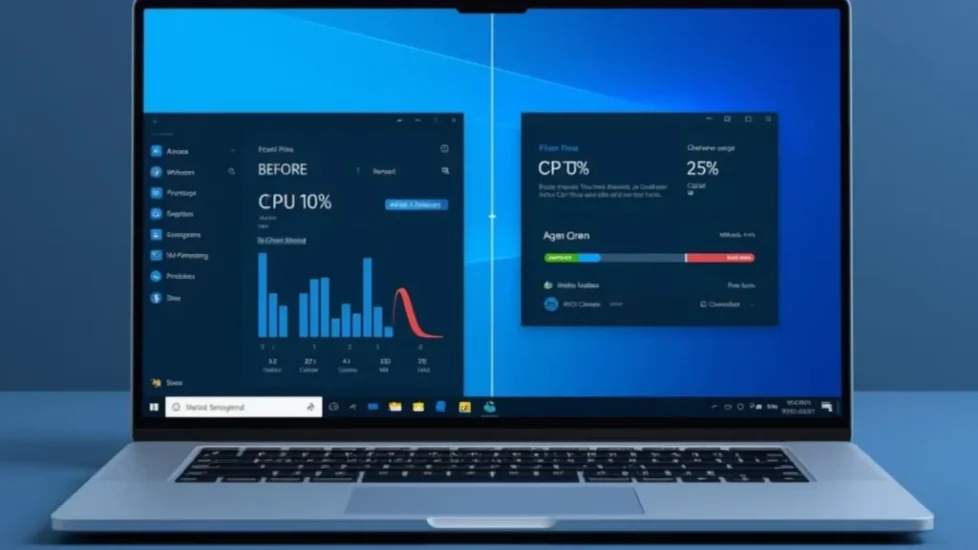
Is your Windows 11 PC taking forever to boot? Do apps freeze, CPU usage spike to 100%, or your laptop fan run constantly? You are not alone. Over time, even powerful computers slow down due to background processes, startup overload, outdated drivers, temporary files, and system fragmentation.
This complete Windows 11 optimization blueprint walks you through:
-
Quick 5-minute performance fixes
-
Advanced system tuning techniques
-
The best automatic optimization tools
-
Hardware upgrades that actually matter
-
Solutions to common performance problems
If you are looking for a detailed breakdown of root causes, also see our guide on Why Is My Windows 11 PC So Slow? and our step-by-step tutorial on How to Speed Up a Slow Windows 11 PC.
Let’s fix your slow PC properly.
Why Does Windows 11 Slow Down Over Time?
Even new computers can become slow after months of use. Here are the main technical reasons.
1. Too Many Startup Programs
Every app that launches during boot increases system load. Many programs automatically enable startup without asking.
Result:
-
Longer boot time
-
High disk usage
-
Slow login screen
You can fix this in Task Manager (Startup tab). For detailed steps, see our guide on Disable Startup Programs in Windows 11.
2. Background Services & Processes
Windows 11 runs dozens of background services. Some are essential, others are not.
Common offenders:
-
Third-party updaters
-
Cloud sync services
-
Telemetry tools
-
Gaming overlays
These consume RAM and CPU continuously.
If your CPU is stuck at high usage, see our dedicated guide on Fix High CPU Usage in Windows 11.
3. Junk Files & Temporary Cache
Temporary files accumulate from:
-
Browsers
-
Windows updates
-
Installers
-
System logs
Over time, they consume storage and reduce disk efficiency.
4. Outdated or Corrupt Drivers
Old drivers cause:
-
System freezes
-
Gaming lag
-
Random crashes
-
Poor hardware communication
Driver maintenance is critical for performance stability.
5. Windows Updates Gone Wrong
Sometimes updates introduce performance issues.
If your PC became slow after an update, see Fix Windows 11 Update Errors.
6. Insufficient RAM or HDD Bottlenecks
Hardware limitations matter:
-
4GB RAM is insufficient for Windows 11
-
HDD drives are significantly slower than SSD
-
Low free disk space reduces performance
We’ll cover upgrade solutions later in this guide.
5 Quick Ways to Instantly Speed Up Windows 11
These fixes take less than 10 minutes.
1. Restart Your PC Properly
Avoid using Sleep mode constantly. A full restart clears:
-
Cached memory
-
Hung background services
-
Temporary CPU spikes
Go to:
Start → Power → Restart
2. Disable Startup Programs
-
Press Ctrl + Shift + Esc
-
Go to Startup tab
-
Disable unnecessary apps
Focus on:
-
Game launchers
-
Third-party update tools
-
Messaging apps
For a full walkthrough, see Disable Startup Programs in Windows 11.
3. Delete Temporary Files

-
Press Windows + R
-
Type:
%temp% -
Delete all files
-
Empty Recycle Bin
You can also use:
Settings → System → Storage → Temporary Files
4. Change Power Plan to High Performance
-
Open Control Panel
-
Go to Power Options
-
Select High Performance
This prevents CPU throttling.
5. Update Windows
Go to:
Settings → Windows Update → Check for updates
Security patches often improve performance and stability.
Advanced Ways to Improve Windows 11 Performance
Now we move into deeper optimization.
Adjust Visual Effects
Windows animations consume resources.
-
Press Windows key
-
Type: Advanced system settings
-
Click Performance Settings
-
Select “Adjust for best performance”
This reduces UI overhead.
Optimize Virtual Memory (Page File)
-
Open Advanced System Settings
-
Performance → Advanced → Virtual Memory
-
Set custom size (1.5x your RAM recommended)
This improves memory management.
Run System File Checker (SFC)
Corrupted system files reduce performance.
Open Command Prompt as Admin:
Wait for verification and repair.
For deeper fixes, read How to Repair Corrupted System Files.
Update Device Drivers

Drivers control hardware communication.
Manual method:
-
Device Manager → Update driver
Automatic method:
Use tools like Driver Booster for bulk driver updates.
Disable Background Apps
Go to:
Settings → Apps → Installed Apps → Background permissions
Disable apps that don’t need background access.
Optimize SSD (TRIM)
-
Open Defragment and Optimize Drives
-
Select SSD
-
Click Optimize
Windows will run TRIM command.
Best Tools to Automatically Speed Up Windows 11
Manual optimization works. But automation saves time.
Below are trusted tools commonly used for PC maintenance.
Advanced SystemCare
Best for:
-
One-click optimization
-
Junk cleaning
-
Startup management
Pros:
-
Beginner friendly
-
Performance monitor
-
Privacy cleanup
Read our full Advanced SystemCare Review for detailed testing results.
CCleaner
Best for:
-
Deep file cleanup
-
Browser cache removal
-
Registry maintenance
Pros:
-
Simple interface
-
Trusted brand
-
Good startup manager
See our full CCleaner Review before installing.
Driver Booster
Best for:
-
Automatic driver updates
-
Gaming performance improvement
-
Hardware stability
Pros:
-
Large driver database
-
Scheduled scans
-
Backup & restore option
Read our full Driver Booster Review.
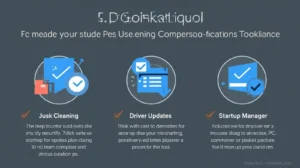
Tool Comparison Snapshot
| Tool | Best For | Automatic Fix | Free Version |
|---|
| Tool | Best For | Automatic Fix | Free Version |
|---|---|---|---|
| Advanced SystemCare | Full system tune-up | Yes | Yes |
| CCleaner | Deep cleanup | Limited | Yes |
| Driver Booster | Driver updates | Yes | Yes |
When Software Fixes Aren’t Enough
Sometimes the bottleneck is hardware.
Upgrade to SSD (Biggest Performance Boost)
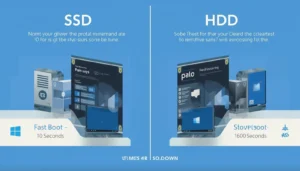
Switching from HDD to SSD can:
-
Reduce boot time by 50–70%
-
Load apps instantly
-
Improve system responsiveness
This is the single most effective upgrade.
Add More RAM
Recommended:
-
8GB minimum
-
16GB ideal for multitasking
-
32GB for heavy editing/gaming
Low RAM causes freezing and disk swapping.
Clean Internal Dust
Overheating causes CPU throttling.
Symptoms:
-
Loud fan
-
Random slowdowns
-
Sudden shutdown
Cleaning fans improves airflow.
Fix Common Windows 11 Performance Problems
Windows 11 Freezing Randomly
Causes:
-
Corrupt drivers
-
Insufficient RAM
-
Background app overload
See our detailed guide: Stop Windows 11 Freezing and Random Crashes.
100% CPU Usage

Common causes:
-
Windows Search
-
Antivirus scan
-
Driver conflicts
Full fix here: Fix High CPU Usage in Windows 11.
Slow After Update
Try:
-
Rollback update
-
Clear update cache
-
Reinstall drivers
Blue Screen Errors (BSOD)
Usually driver or hardware related.
Run:
-
Windows Memory Diagnostic
-
SFC scan
-
Driver update
Slow Internet Affecting Performance
Network lag impacts cloud apps and gaming.
Windows 11 Performance FAQs
Why is my Windows 11 PC suddenly slow?
Sudden slowdown is usually caused by background updates, driver issues, malware, or high startup load. Checking Task Manager and disabling unnecessary startup apps is a good first step.
Does resetting Windows 11 make it faster?
Yes, resetting removes software clutter and restores system integrity. However, it should be a last resort after optimization steps.
Is a registry cleaner safe?
Modern Windows versions rarely require registry cleaning. Use trusted tools only and always create backups before cleaning.
How much RAM does Windows 11 need?
Microsoft minimum is 4GB, but practical performance requires at least 8GB. For smooth multitasking, 16GB is recommended.
Should I disable Windows services?
Only disable non-essential third-party services. Disabling core Windows services can cause instability.
Complete Windows 11 Speed Optimization Checklist
Use this quick reference:
✔ Restart properly
✔ Disable startup apps
✔ Delete temporary files
✔ Update Windows
✔ Update drivers
✔ Adjust visual effects
✔ Run SFC scan
✔ Optimize SSD
✔ Increase RAM if needed
✔ Upgrade to SSD
If you prefer automation, review our recommended tools above to simplify the entire process.
Final Thoughts
Speeding up Windows 11 is not about one single tweak. It is a layered approach:
-
Remove unnecessary load
-
Repair system integrity
-
Optimize settings
-
Update drivers
-
Upgrade hardware if required
If you follow this blueprint, your PC will perform significantly better and remain stable long-term.
For deeper fixes, explore our complete Windows help category and related optimization guides.
Estimated reading time: 14 minutes