Fix Windows 11 Freezing & Crashing Issues (Easy Solutions)
If your Windows 11 computer freezes, becomes unresponsive, or crashes without warning, you are not alone. These problems are common and often caused by software conflicts, outdated drivers, or system errors. The good news is that most freezing issues can be fixed safely without advanced technical skills. This guide walks you through simple, proven steps to stabilize your PC.
Why Windows 11 Freezes or Crashes
Windows 11 freezing issues usually come from one or more of these causes:
-
Outdated or incompatible drivers
-
Problematic Windows updates
-
Malware or background processes
-
Low system resources (RAM or storage)
-
Corrupted system files
Understanding the cause helps you fix the problem correctly instead of guessing.
Try These Quick Fixes First
Before moving to advanced steps, try these basic checks:
-
Restart your computer
-
Disconnect unnecessary USB devices
-
Close apps running in the background
-
Make sure your PC has enough free disk space
👉 Related guide: [Free Up Disk Space in Windows 11]
Check for Driver Problems
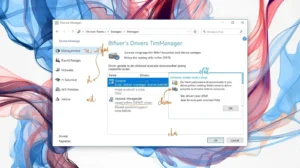
Outdated or broken drivers are a major cause of Windows 11 freezing. Graphics and network drivers are the most common culprits.
Steps:
-
Press Windows + X → Device Manager
-
Look for warning icons
-
Right-click a device → Update driver
-
Restart after updating
👉 Related guide: [Fix Driver Problems in Windows 11]
Scan for System File Errors
Corrupted system files can cause random crashes and freezing.
Steps:
-
Press Windows + S, search Command Prompt
-
Right-click → Run as administrator
-
Type:
-
Wait for the scan to finish
-
Restart your PC
This tool safely repairs broken Windows files automatically.
Check for Malware or Suspicious Programs

Malware can overload your system and cause freezes.
-
Open Windows Security
-
Run a Full Scan
-
Remove any detected threats
👉 Related guide: [Remove Malware from Windows 11]
Fix Freezing After a Windows Update
Sometimes Windows updates cause instability.
What You Can Do:
-
Install pending updates
-
Roll back a recent update
-
Pause updates temporarily
👉 Related guide: [Fix Windows 11 Update Problems]
Reduce System Load to Prevent Freezing
You can improve stability by adjusting performance settings:
-
Disable unnecessary startup apps
-
Turn off visual effects
-
Keep at least 20% disk space free
👉 Related guide: [Speed Up a Slow Windows 11 PC]
Check Your Hard Drive (Especially HDD Users)
Failing HDDs often cause freezing.
Run Disk Check:
-
Open Command Prompt as Admin
-
Type:
If you’re still using HDD, upgrading to SSD dramatically improves stability.
Check for Overheating
Overheating can force your PC to freeze or crash.
Signs:
-
Loud fan noise
-
System freezes during gaming
-
Sudden shutdowns
Solutions:
-
Clean dust from vents
-
Improve airflow
-
Replace thermal paste (advanced users)
Reset Windows 11 (Last Resort)
If crashes continue:
-
Go to Settings
-
System → Recovery
-
Click Reset this PC
-
Choose Keep My Files
This reinstalls Windows while keeping personal files.
Fix High CPU or RAM Usage
If CPU usage stays near 100%, your system may freeze.
Open Task Manager → Processes and look for:
-
Unknown programs
-
Apps using excessive CPU
-
Suspicious background services
If needed, follow our complete guide on
👉 Speed Up Windows 11 (Internal link to pillar)
When to Consider a PC Optimization Tool
If manual fixes feel overwhelming, a reputable optimization tool can:
-
Clean junk files
-
Repair registry issues
-
Update drivers
-
Manage startup apps
See our in-depth review of:
OPTIONAL FAQ
Q: Why does Windows 11 freeze randomly?
A: Common causes include outdated drivers, system file errors, malware, or low system resources.
Q: Can freezing damage my PC?
A: Occasional freezing usually does not cause damage, but frequent crashes can lead to data loss if not fixed.
Q: Should I reset Windows 11 if it keeps freezing?
A: Resetting is a last resort. Try troubleshooting first.
Conclusion
Windows 11 freezing issues can be frustrating, but they are usually fixable with safe and simple steps. By checking drivers, scanning system files, and keeping your PC clean and updated, you can restore stability and prevent future crashes.
If freezing continues after these steps, it may indicate hardware issues or the need for professional support.
Estimated reading time: 6 minutes