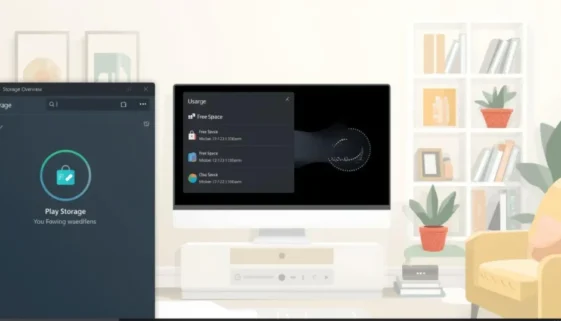
How to Free Up Disk Space in Windows 11 (Safe Methods)

Running out of disk space can make Windows 11 slow, unstable, and frustrating to use. Many home users and small businesses don’t realize that storage issues build up quietly over time. In this guide, you’ll learn safe, step-by-step ways to free up disk space in Windows 11—without deleting important files or breaking your system.

Why Low Disk Space Slows Down Windows 11

When your storage drive is almost full, Windows has less room to:

  • Create temporary system files

  • Install updates correctly

  • Run apps smoothly

This can lead to slow startup, freezing, and crashes. In fact, low disk space is often linked to both performance issues and startup problems in Windows 11.

👉 If your PC feels sluggish overall, see our guide on how to speed up a slow Windows 11 PC.
👉 If Windows struggles to boot, check Windows 11 startup problems first.

Check What’s Using Your Storage

Viewing storage usage categories in Windows 11 settings

Steps:

  1. Open Settings

  2. Go to System → Storage

  3. Wait for Windows to analyze your disk

You’ll see categories like:

  • Apps

  • Temporary files

  • Documents

  • Pictures

  • System & reserved

This view helps you decide what’s safe to clean up—and what to leave alone.

Use Storage Sense (Recommended)

Using Storage Sense to clean up disk space in Windows 11

Storage Sense is a built-in Windows tool that automatically removes junk files.

How to enable it:

  1. Go to Settings → System → Storage

  2. Turn Storage Sense ON

  3. Click Configure Storage Sense

  4. Choose:

    • Delete temporary files

    • Empty recycle bin after 30 days

✔ Safe
✔ Automatic

✔ Beginner-friendly

Remove Temporary Files Safely

Temporary files can take up several gigabytes over time.

Steps:

  1. Go to Settings → System → Storage

  2. Click Temporary files

  3. Select:

    • Temporary system files

    • Thumbnails

    • Delivery Optimization files

  4. Click Remove files

⚠️ Do not select:

  • Downloads (unless reviewed)

  • Previous Windows installations (unless you’re sure)

Uninstall Apps You No Longer Use

Uninstalling unused applications to free disk space in Windows 11

Unused apps are one of the biggest storage wasters.

Steps:

  1. Go to Settings → Apps → Installed apps

  2. Sort by Size

  3. Uninstall apps you no longer need

Removing unused software can also improve performance and reduce startup load.

👉 This directly supports the fixes in our Windows 11 startup problems guide.

Clean Up Large Personal Files

Check these folders:

  • Downloads

  • Videos

  • Desktop

Tips:

  • Move large files to an external drive

  • Use cloud storage for backups

  • Delete duplicates

Optional Tool Recommendation (Soft Affiliate)

A reliable external hard drive or cloud backup tool helps free space without deleting important data.

(Affiliate link placed naturally here — no banners)

When You Should Upgrade Storage

Consider upgrading if:

  • Your drive is always above 90% full

  • You regularly install large apps

  • Windows updates fail due to low space

For small businesses, upgrading storage is often cheaper than losing productivity.

Common Mistakes to Avoid

❌ Deleting system folders
❌ Using “PC cleaner” tools aggressively
❌ Clearing files without backups
❌ Disabling Windows services

Stick to built-in tools unless you fully understand what you’re changing.

Frequently Asked Questions

Q: How much free space should Windows 11 have?
At least 20–25% of your drive should remain free for smooth performance.

Q: Is it safe to delete temporary files?
Yes, when done through Windows Settings.

Q: Can low disk space cause startup problems?
Yes. Low space can delay or block startup processes.

Final Thoughts

Freeing up disk space is one of the safest ways to keep Windows 11 healthy. By using built-in tools and smart file management, you can avoid slowdowns, failed updates, and startup issues.

For best results:

  • Combine this guide with our Windows 11 performance and startup repair tutorials

  • Make disk cleanup a monthly habit