how-malware-slows-down-windows-11-and-how-to-remove-it
If your Windows 11 PC feels unusually slow, freezes often, or behaves strangely, malware could be part of the problem. Malicious software can quietly consume system resources, affect startup speed, and put your data at risk. In this guide, you’ll learn how malware slows down Windows 11 and how to remove it safely using trusted, built-in tools.
How Malware Affects Windows 11 Performance
Malware can slow your PC by:
-
Running hidden background processes
-
Loading automatically during startup
-
Using CPU, memory, and disk resources
-
Causing system instability and errors
These issues often appear as:
-
Slow boot times
-
Lag during normal tasks
-
Apps opening slowly or freezing
👉 For general system tuning, see how to speed up a slow Windows 11 PC.
👉 If your PC is slow before Windows fully loads, review Windows 11 startup problems.
Common Signs Malware Is Slowing Your PC

Watch for these warning signs:
-
PC becomes slow without obvious reason
-
Fans running loudly when idle
-
Unexpected pop-ups or browser redirects
-
New programs you didn’t install
-
Startup taking much longer than usual
If several of these apply, a malware scan is recommended.
Check Windows Security First (Recommended)
Windows 11 includes Windows Security, which is effective for most users.
Run a scan:
-
Open Settings
-
Go to Privacy & Security → Windows Security
-
Click Virus & threat protection
-
Choose Quick scan or Full scan
This removes most common threats safely.
Remove Malware Using Built-In Tools
If threats are detected:
-
Follow Windows Security removal steps
-
Restart your PC when prompted
-
Run a second scan to confirm cleanup
Avoid disabling security features during this process.
Check Startup Programs After Cleanup
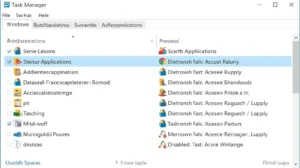
Some malware adds itself to startup.
Steps:
-
Press Ctrl + Shift + Esc
-
Open the Startup tab
-
Disable unknown or suspicious items
👉 This also improves boot speed—see our guide on fixing Windows 11 startup problems.
When to Use Trusted Third-Party Tools
For persistent or advanced threats:
-
Use a reputable antivirus or malware removal tool
-
Avoid “free cleanup” software from unknown sources
-
Never install tools that promise instant fixes
Soft Affiliate Placement (Optional)
A trusted antivirus solution can provide real-time protection and prevent future slowdowns.
(One contextual affiliate link only — no banners)
Prevent Malware From Slowing Your PC Again
Follow these habits:
-
Keep Windows 11 updated
-
Avoid suspicious email attachments
-
Download software only from official sources
-
Run regular security scans
For small businesses, basic security hygiene saves time and money long-term.
Common Mistakes to Avoid
❌ Using cracked software
❌ Ignoring security warnings
❌ Installing multiple antivirus tools
❌ Clicking fake “your PC is infected” alerts
Simple caution goes a long way.
Frequently Asked Questions
Q: Can malware cause startup problems?
Yes. Malware often loads during startup and slows boot time.
Q: Is Windows Security enough?
For most users, yes. Advanced threats may require additional tools.
Q: Will removing malware speed up my PC?
In many cases, yes—especially if malware was running in the background.
Final Thoughts
Malware doesn’t just threaten security—it directly affects performance and reliability. By using Windows’ built-in tools and following safe habits, you can protect your PC and keep Windows 11 running smoothly.
For best results:
-
Combine malware cleanup with disk cleanup and startup optimization
-
Make security checks part of regular maintenance