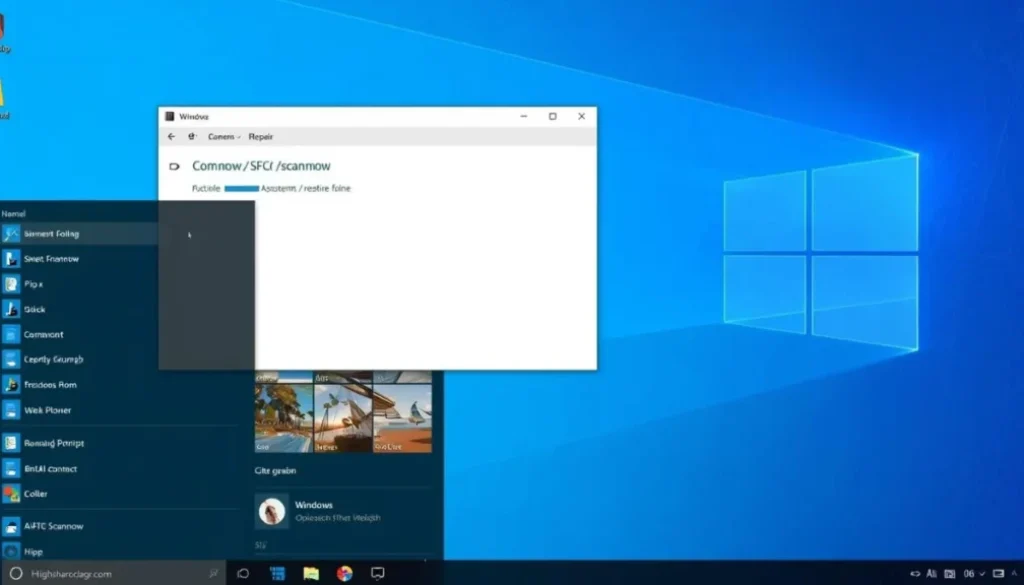
Repair Corrupted System Files in Windows 11: 7 Fixes That Work
Fix crashes, blue screens, update errors, and slow performance by repairing damaged Windows system files safely.
🟢 SECTION 1: What Are Corrupted System Files?
System files are essential Windows components that control:
-
Boot process
-
Updates
-
Drivers
-
Security
-
Core functionality
If they become corrupted, Windows may:
-
Freeze
-
Crash randomly
-
Show Blue Screen errors
-
Fail to install updates
-
Run extremely slow
🔴 SECTION 2: Signs Your System Files Are Corrupted
Common symptoms:
-
“Windows Resource Protection found corrupt files”
-
Frequent BSOD errors
-
Apps crashing unexpectedly
-
Windows Update failing
-
Missing DLL errors
-
Startup issues
If you see these problems, repair is required.
🟡 SECTION 3: Before You Start (Important Checklist)
✔ Restart your PC
✔ Close all running apps
✔ Ensure stable internet
✔ Backup important files
Repairs are safe, but preparation prevents data loss.
🔵 SECTION 4: Method 1 – Run SFC Scan (Most Important Fix)
SFC (System File Checker) scans and repairs corrupted files automatically.
Step 1:
Right-click Start → Choose Terminal (Admin)
Step 2:
Type:
Step 3:
Press Enter and wait (5–15 minutes)
Step 4:
Restart your PC
If SFC finds and repairs files, your issue may be resolved.
🟣 SECTION 5: Method 2 – Use DISM to Repair Windows Image
If SFC fails, use DISM.
DISM repairs the Windows system image.
Step 1:
Open Terminal (Admin)
Step 2:
Run:
Step 3:
Wait until 100% completes
Step 4:
Run SFC again afterward
DISM fixes deeper corruption.
🟢 SECTION 6: Method 3 – Run CHKDSK (Fix Disk Errors)
If corruption is disk-related:
Step 1:
Open Terminal (Admin)
Step 2:
Type:
Step 3:
Press Y and restart PC
This checks for bad sectors and repairs disk errors.

🔵 SECTION 7: Method 4 – Windows Automatic Repair
If Windows won’t boot:
-
Force shutdown 3 times during boot
-
Enter Recovery Mode
-
Choose:
-
Troubleshoot
-
Advanced Options
-
Startup Repair
-
Windows will attempt automatic fixes.
🔴 SECTION 8: Method 5 – Reset Windows (Last Resort)
If corruption persists:
Settings → System → Recovery → Reset this PC
Choose:
-
Keep my files (recommended)
This reinstalls Windows without deleting personal files.
⚠️ SECTION 9: What Causes System File Corruption?
-
Sudden power loss
-
Malware
-
Failed Windows updates
-
Hard drive failure
-
Faulty RAM
-
Driver conflicts
Prevention is as important as repair.
🛡 SECTION 10: How to Prevent Future Corruption
✔ Keep Windows updated
✔ Avoid forced shutdowns
✔ Use antivirus protection
✔ Upgrade HDD to SSD
✔ Maintain stable power supply
✔ Run monthly SFC scans
For deeper optimization:
👉 Fix High CPU Usage in Windows 11
👉 Reduce RAM Usage in Windows 11
👉 Fix Windows 11 Update Errors
👉 Stop Windows 11 Freezing
(Strengthens your internal linking cluster.)
❓ FAQ (Rich Snippet Optimized)
1. Does SFC fix all corrupted files?
It fixes most minor corruption. Use DISM if SFC fails.
2. How long does SFC take?
Typically 5–20 minutes.
3. Is DISM safe?
Yes. It only repairs system images.
4. Can corrupted system files cause a blue screen?
Yes, especially if core drivers are affected.
5. Should I reset Windows if SFC fails?
Only if DISM and CHKDSK don’t resolve the issue.
🏁 CONCLUSION
Corrupted system files are a major cause of:
-
Random crashes
-
Blue screens
-
Update failures
-
Slow performance
The safest repair order:
1️⃣ Run SFC
2️⃣ Run DISM
3️⃣ Run CHKDSK
4️⃣ Use Startup Repair
5️⃣ Reset Windows (if necessary)
Most users fix the issue within 15 minutes using SFC alone.
Regular maintenance keeps Windows 11 stable and fast.
Estimated reading time: 7 minutes