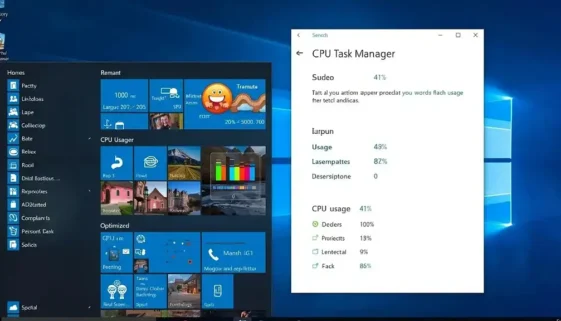
Fix High CPU Usage in Windows 11 (100% CPU Usage Guide)

Is your Windows 11 computer stuck at 100% CPU usage?
Is your system slow, overheating, or constantly freezing?

High CPU usage in Windows 11 is usually caused by background processes, Windows services, outdated drivers, malware, or system corruption.

This complete guide walks you through every working solution — from quick fixes to advanced troubleshooting.

1. Why Is CPU Usage So High in Windows 11?

Common causes include:

  • Too many startup programs

  • Windows Update running in background

  • Corrupted system files

  • Outdated or faulty drivers

  • Malware or crypto-miners

  • High disk usage conflicts

  • Search indexing overload

Understanding the cause is the first step to fixing it.

2. Check CPU Usage in Task Manager

Before fixing anything, identify the process causing the spike.

Steps:

  1. Press Ctrl + Shift + Esc

  2. Open Task Manager

  3. Click the CPU column to sort by highest usage

  4. Identify suspicious or heavy processes

  5. Check high CPU usage in Windows 11 Task Manager

3. Disable Startup Programs

Startup apps increase CPU load even when idle.

Steps:

  1. Open Task Manager

  2. Click Startup apps

  3. Disable high-impact programs

  4. Restart PC

If boot performance is also slow, see our
👉 Windows 11 startup problems fix guide

4. Update Drivers (Major Cause of CPU Spikes)

Outdated drivers often cause system instability and high CPU usage.

Steps:

  1. Press Win + X

  2. Select Device Manager

  3. Update drivers with warning icons

For a detailed walkthrough, read:
👉 how to update drivers in Windows 11

5. Scan for Malware

Malware can secretly consume CPU resources.

Run:

  • Windows Security → Full Scan

  • Or trusted antivirus software

Remove suspicious software immediately.

6. Disable Windows Search Indexing (If Spiking CPU)

Search indexing can occasionally overload your processor.

Steps:

  1. Press Win + R

  2. Type services.msc

  3. Find Windows Search

  4. Right-click → Stop

  5. Disable Windows Search service to fix high CPU usage

7. Run System File Checker & DISM

Corrupted system files cause abnormal CPU behavior.

Open Command Prompt as Administrator and run:


sfc /scannow
 

Then:


DISM /Online /Cleanup-Image /RestoreHealth
 

Restart your PC afterward.

If your PC also freezes, check:
👉 Windows 11 freezing and crashing guide

8. Adjust Power Plan Settings

High Performance mode can increase CPU activity.

Steps:

  1. Open Control Panel

  2. Go to Power Options

  3. Select Balanced

9. Turn Off Background Apps

Background applications silently consume CPU.

  1. Go to Settings

  2. Apps → Installed Apps

  3. Disable background permissions for unnecessary apps

10. Perform a Clean Boot

If CPU remains at 100%:

  1. Press Win + R

  2. Type msconfig

  3. Disable non-Microsoft services

  4. Restart

This identifies software conflicts.

When Is High CPU Usage Normal?

Temporary spikes occur during:

  • Windows updates

  • Gaming

  • Video editing

  • Large installations

Persistent 100% CPU while idle is not normal.

Prevent High CPU Usage in Windows 11

  • Disable unnecessary startup apps

  • Keep drivers updated

  • Avoid pirated software

  • Maintain free disk space

  • Restart PC weekly

For complete performance optimization, see our
👉 complete Windows 11 speed guide

Final Thoughts

If your system feels slow, overheats, or freezes often, applying these steps to fix high CPU usage in Windows 11 can instantly restore performance.

Start with startup apps and background services — most users see immediate improvement.
For deeper issues, use driver updates and system repair tools.

Estimated reading time: 6 minutes

Table of contents

Home » Windows 11 Tips