
Reduce RAM Usage in Windows 11 (Fix High Memory Usage)
Is your Windows 11 PC using 70–90% memory while idle?
Is your system lagging, freezing, or slowing down during multitasking?
High RAM usage in Windows 11 is usually caused by:
-
Too many startup programs
-
Background apps
-
Memory leaks
-
Browser overload
-
Malware
-
Outdated drivers
This complete guide shows you how to reduce ram-usage-windows-11 and restore smooth performance.
1. Why Is RAM Usage So High in Windows 11?
Common causes include:
-
Too many programs is running at startup
-
Background apps using memory
-
Chrome or Edge is using multiple tabs
-
Memory leaks from outdated drivers
-
Windows services running continuously
-
Insufficient physical RAM
High memory usage leads to:
-
Slow performance
-
App crashes
-
System freezing
-
High CPU usage
If CPU is also high, see:
👉 Fix high CPU usage in Windows 11
2. How to Check Memory Usage
Steps:
-
Press Ctrl + Shift + Esc
-
Open Task Manager
-
Click the Performance tab
-
Select Memory
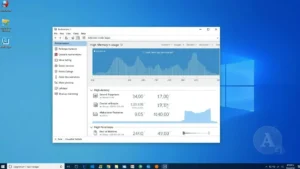
If memory usage stays above 70% while idle, optimization is needed.
3. Disable Startup Programs (Biggest Impact)
Startup apps consume RAM immediately after boot.
Steps:
-
Open Task Manager
-
Click Startup apps
-
Disable high-impact programs
-
Restart PC
If boot time is also slow, read:
👉 Windows 11 startup problems fix
4. Close Background Apps
Many apps run silently in the background.
Steps:
-
Open Settings
-
Go to Apps → Installed Apps
-
Disable background permissions
This alone can reduce memory usage significantly.
5. Reduce Browser Memory Usage
Browsers like Chrome consume large amounts of RAM.
Solutions:
-
Close unused tabs
-
Disable extensions
-
Enable memory saver mode
-
Use one browser at a time
Heavy browser usage often causes freezing.
👉 Fix Windows 11 freezing issues
6. Increase Virtual Memory (Paging File)
Virtual memory helps when physical RAM is full.
Steps:
-
Search Advanced system settings
-
Click Performance → Settings
-
Go to Advanced → Virtual Memory
-
Set custom size (1.5x RAM recommended)

7. Scan for Malware
Malware can secretly consume memory.
Run:
-
Windows Security → Full Scan
-
Trusted antivirus software
Remove suspicious processes immediately.
8. Update Drivers
Outdated drivers cause memory leaks.
Update:
-
Graphics driver
-
Chipset driver
-
Network driver
See full guide:
👉 How to update drivers in Windows 11
9. Disable Unnecessary Windows Services
Some services use memory constantly.
Optional:
Disable:
-
Windows Search (if high usage)
-
Xbox services (if unused)
-
Print Spooler (if no printer)
Be cautious when disabling services.
10. Reset Windows 11 (Last Resort)
If memory usage remains abnormally high:
Settings → System → Recovery → Reset this PC
Choose “Keep my files.”
11. When Should You Upgrade RAM?
If your PC has:
-
4GB RAM → Upgrade immediately
-
8GB RAM → Upgrade for heavy multitasking
-
16GB RAM → Usually sufficient
For full performance optimization, see:
👉 Complete Windows 11 speed guide
How to Prevent High RAM Usage
-
Restart weekly
-
Avoid installing unnecessary apps
-
Keep drivers updated
-
Limit startup programs
-
Close apps after use
Frequently Asked Questions (FAQ)
Why is Windows 11 using so much RAM?
Windows 11 uses memory for caching and background services, but excessive usage is usually caused by startup apps, memory leaks, or malware.
Is 70% RAM usage normal?
Yes, during heavy multitasking. No, if idle with few apps running.
Will upgrading RAM fix high memory usage?
Yes, especially if you have 4GB or 8GB and multitask frequently.
Can high RAM usage slow down my PC?
Yes. When RAM is full, Windows uses disk as memory, causing lag.
Estimated reading time: 7 minutes