
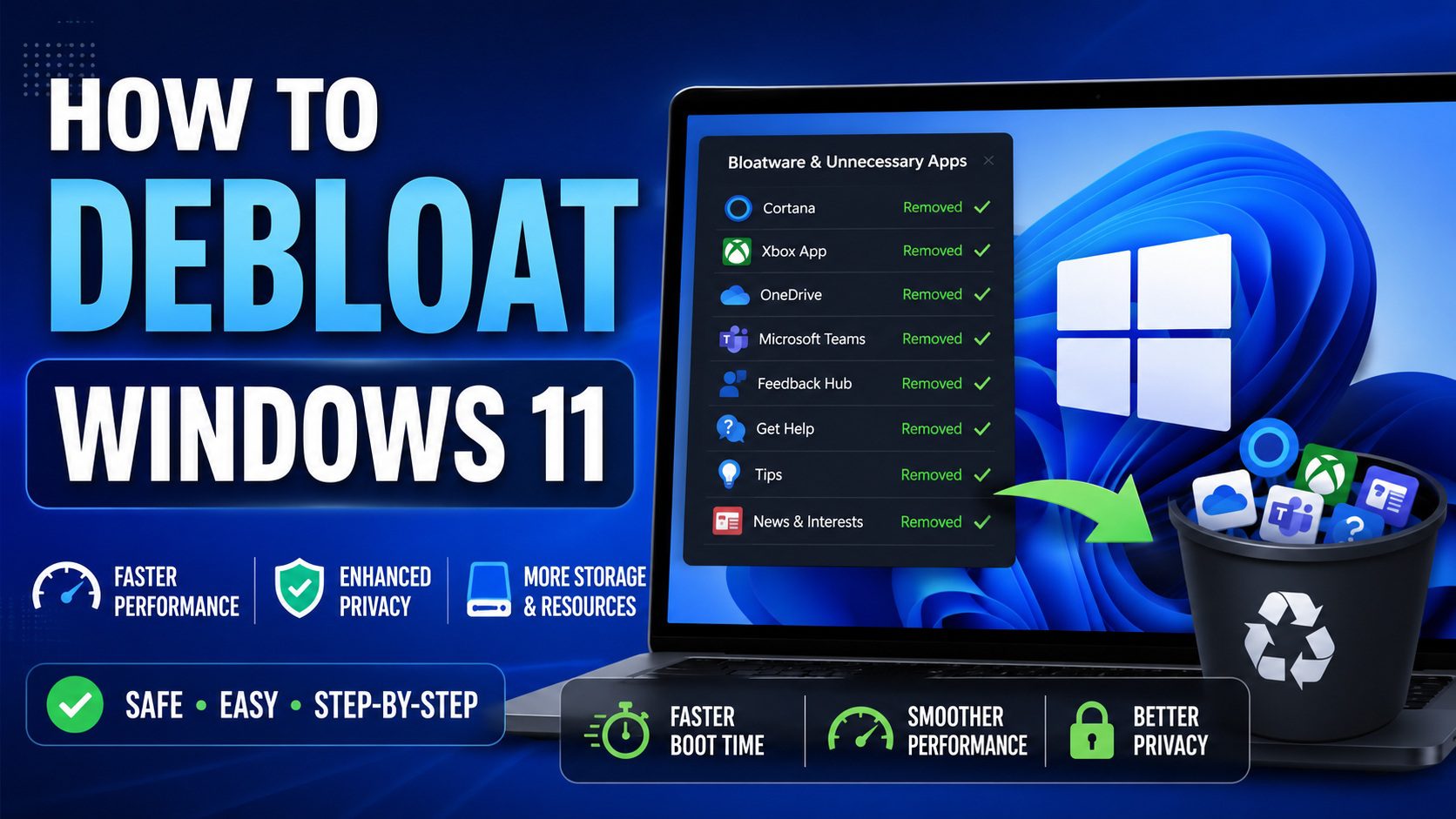
Windows 11 comes with many built‑in apps, background services, and preinstalled features that most users never use.
On powerful computers, this may not matter.
But on low-end laptops with 4GB or 8GB RAM, these extras can slow your system down significantly.
If your PC feels sluggish, learning how to debloat Windows 11 safely can dramatically improve performance.
In this guide, you’ll learn:
- ✅ What Windows 11 bloatware actually is
- ✅ What is safe to remove
- ✅ What you should never remove
- ✅ Step‑by‑step safe debloating methods
- ✅ How to improve performance without breaking your system
debloat windows 11 safely, What Is Windows 11 Bloatware?
“Bloatware” refers to preinstalled apps, background processes, and unnecessary services that consume system resources.
Common Windows 11 bloat includes:
- Xbox Game Bar
- Widgets
- Microsoft Teams (consumer version)
- Preinstalled store apps
- Background telemetry services
- Startup apps you don’t use
These programs:
- Use RAM
- Increase CPU usage
- Slow boot time
- Run in the background
- Drain battery life
If you are experiencing:
Debloating can help.
⚠️debloat windows 11 safely Is Debloating Windows 11 Safe?
Yes — if done correctly.
Unsafe debloating usually happens when people:
- Delete system files manually
- Use unknown scripts from random websites
- Disable critical Windows services
- Remove Microsoft Defender
- Modify the registry blindly
This guide focuses only on safe, reversible methods.
Never remove:
❌ Windows Security
❌ Graphics drivers
❌ Network drivers
❌ Core system services
If you follow proper methods, debloating Windows 11 is completely safe.


Step 1: Remove Unnecessary Preinstalled Apps
Windows 11 installs many apps by default.
How to Remove Bloatware Apps:
- Open Settings
- Click Apps
- Select Installed Apps
- Click the three dots next to the app
- Click Uninstall
Apps safe to remove (if unused):
- Xbox Game Bar (if not gaming)
- Clipchamp
- Cortana
- Microsoft Teams (consumer)
- News & Weather apps
Do NOT remove apps you don’t recognize without researching them first.
Removing unnecessary apps reduces background activity and slightly improves responsiveness.

Step 2: Disable Startup Bloat
Many preinstalled apps also launch automatically at startup.
To disable them:
- Right‑click Start
- Open Task Manager
- Go to Startup
- Disable unnecessary apps
For full instructions, read:
👉 How to Disable Startup Apps in Windows 11
This can significantly reduce boot time.
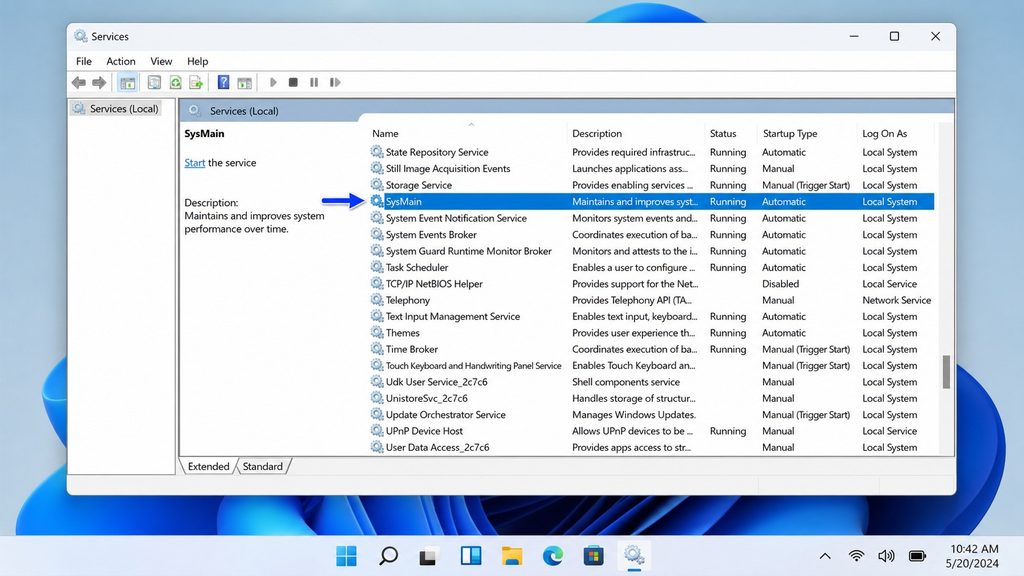
Step 3: Disable Background Apps
Even after uninstalling apps, some programs continue running in the background.
To stop them:
- Go to Settings
- Click Apps
- Select an app → Advanced Options
- Set Background Permissions to Never
You can also follow our full guide:
👉 Remove Background Apps in Windows 11
Reducing background activity lowers RAM usage immediately.
Step 4: Disable Widgets and Optional Features
Windows 11 widgets and suggestions consume system resources.
To disable widgets:
- Go to Settings
- Click Personalization
- Select Taskbar
- Turn off Widgets
Also review:
Settings → Apps → Optional Features
Remove features you do not use.
Step 5: Disable Telemetry (Safely)
Windows 11 collects diagnostic data by default.
To reduce telemetry:
- Go to Settings
- Click Privacy & Security
- Select Diagnostics & Feedback
- Set diagnostic data to Required only
- Disable “Tailored experiences”
This reduces background activity without affecting system stability.
Step 6: Reduce Visual Effects
Animations and transparency add unnecessary load on low-end PCs.
Follow this guide:
👉 Reduce Visual Effects in Windows 11
This improves responsiveness immediately.
Step 7: Optimize for Low RAM Systems
If you’re using a 4GB laptop, you need deeper optimization.
Read:
👉 Best Windows 11 Settings for 4GB RAM
This ensures debloating works effectively.
Does Debloating Improve Gaming Performance?
Yes — especially on low-end hardware.
Removing background apps and reducing telemetry frees up:
- CPU cycles
- RAM
- Disk resources
For gaming-specific optimization:
👉 Optimize Windows 11 for Gaming
👉 Fix FPS Drops in Windows 11
✅ Manual Debloat vs 1‑Click Script
You can manually follow all steps above.
But manual debloating:
- Takes 30–60 minutes
- Requires checking multiple settings
- Increases risk of missing something
The Win11Fly 1‑Click Optimization Script safely automates the most effective debloating steps.
✅ No system file deletion
✅ No malware
✅ Fully reversible
✅ Takes under 60 seconds
👉 Download the Safe Windows 11 Debloat Script
Frequently Asked Questions
What is the safest way to debloat Windows 11?
Uninstall unused apps, disable startup programs, reduce background activity, and adjust privacy settings. Avoid deleting system files manually.
Will debloating break Windows updates?
No — if you only remove non-essential apps and adjust safe settings.
Does debloating increase FPS?
It can improve stability and reduce stuttering by freeing system resources.
Is debloating necessary on 8GB RAM?
Yes — especially on older CPUs or integrated graphics systems.
Final Thoughts
Windows 11 includes many features most users don’t need.
By safely debloating your system, you can:
- Improve responsiveness
- Reduce RAM usage
- Speed up startup
- Improve gaming stability
- Extend laptop lifespan
If you want the fastest and safest method, the 1‑Click Script automates these changes in seconds.
You don’t need a new laptop.
You need smarter optimization.
⚡ AUTOMATE THIS ENTIRE BLUEPRINT IN 10 SECONDS
Our safe, lightweight optimization utility condenses this entire
guide into a single script.
It triggers an automated safety restore
point, strips structural telemetry, purges system bloatware, and
optimizes memory allocation with zero manual effort required.
💰 Secure Lifetime Access for Only $5