

🚀 Is Your Windows 11 Laptop Painfully Slow? Here’s How to Make It Feel Fast Again Without Spending a Dollar
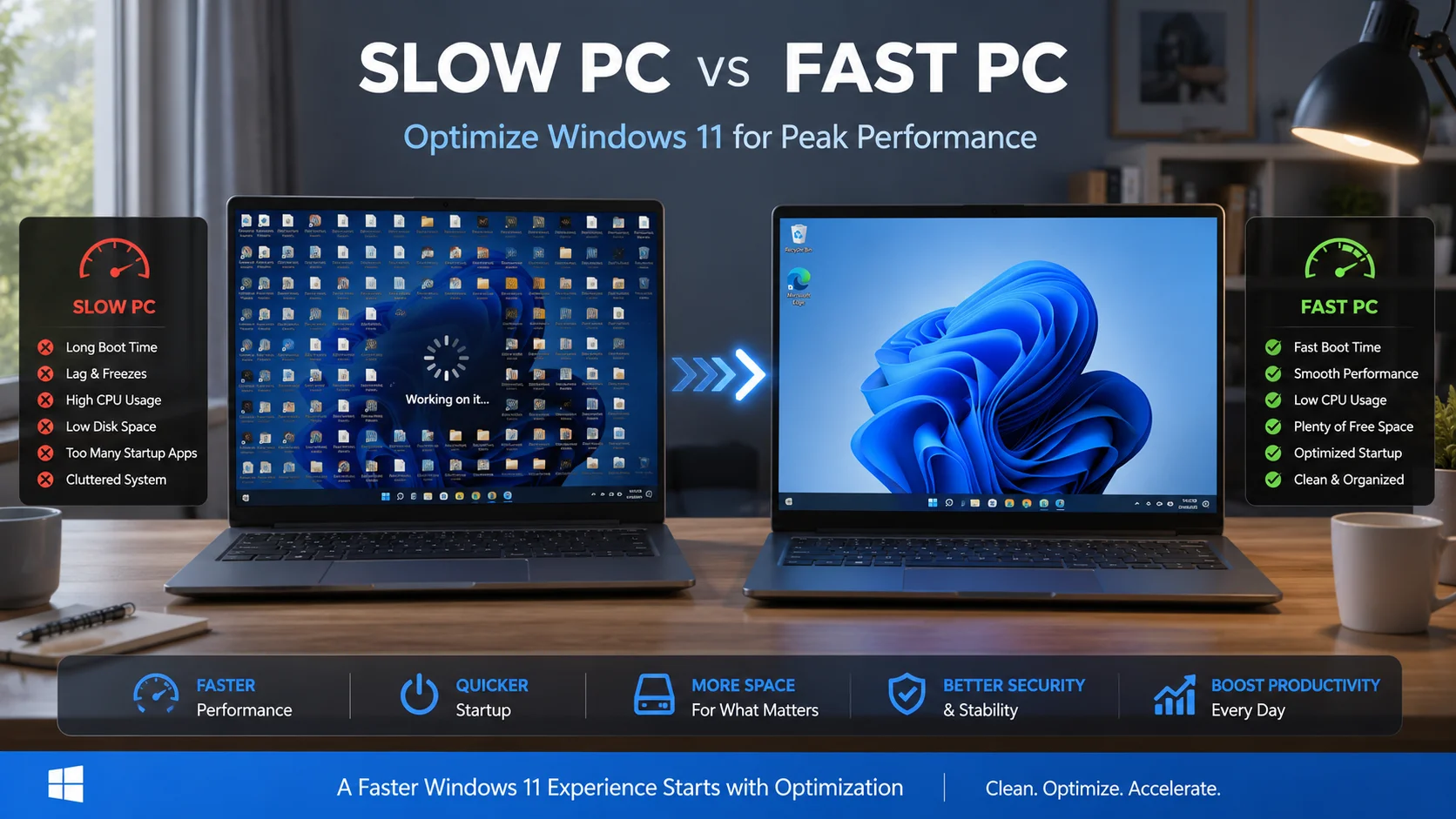
If you’ve been wondering how to speed up Windows 11 on a low-end laptop, you’re not alone. Many budget laptops come with limited RAM, slower processors, and traditional hard drives that struggle to keep up with modern software.
The good news? You don’t have to buy a new computer.
By making a few simple changes to Windows 11 settings, removing unnecessary apps, and optimizing startup processes, you can significantly improve your laptop’s performance. This beginner-friendly guide walks you through every step without requiring technical knowledge.
Whether you use your laptop for work, school, browsing, or streaming, these proven methods can help make Windows 11 feel faster and more responsive.
⚠️ BEGINNER SAFETY BANNER:
Before modifying any system settings or editing your Windows registry, always create a system restore point.
This ensures you can instantly revert your computer back to normal if you make a mistake.
Read our [1-Minute Guide to Windows Restore Points] to set one up now.
Why Windows 11 Gets Slow
Several factors can reduce performance:
- Too many startup programs
- Low available storage
- Background applications
- Outdated drivers
- Malware
- Limited RAM
- Slow HDD storage
Fortunately, most of these issues can be fixed in minutes.

Restart Your Laptop First
A simple restart clears temporary memory and closes background processes.
To restart:
- Click Start.
- Select Power.
- Click Restart.
Avoid leaving your laptop running for weeks without restarting.
Disable Startup Programs to Speed Up Windows 11 on a Low-End Laptop
Many apps launch automatically.
Steps:
- Press Ctrl + Shift + Esc.
- Open Startup Apps.
- Disable unnecessary applications.
Examples:
- Spotify
- Discord
- Teams
- Adobe Updater
- Game launchers
Only keep essential security software enabled.
Remove Apps You Don’t Use
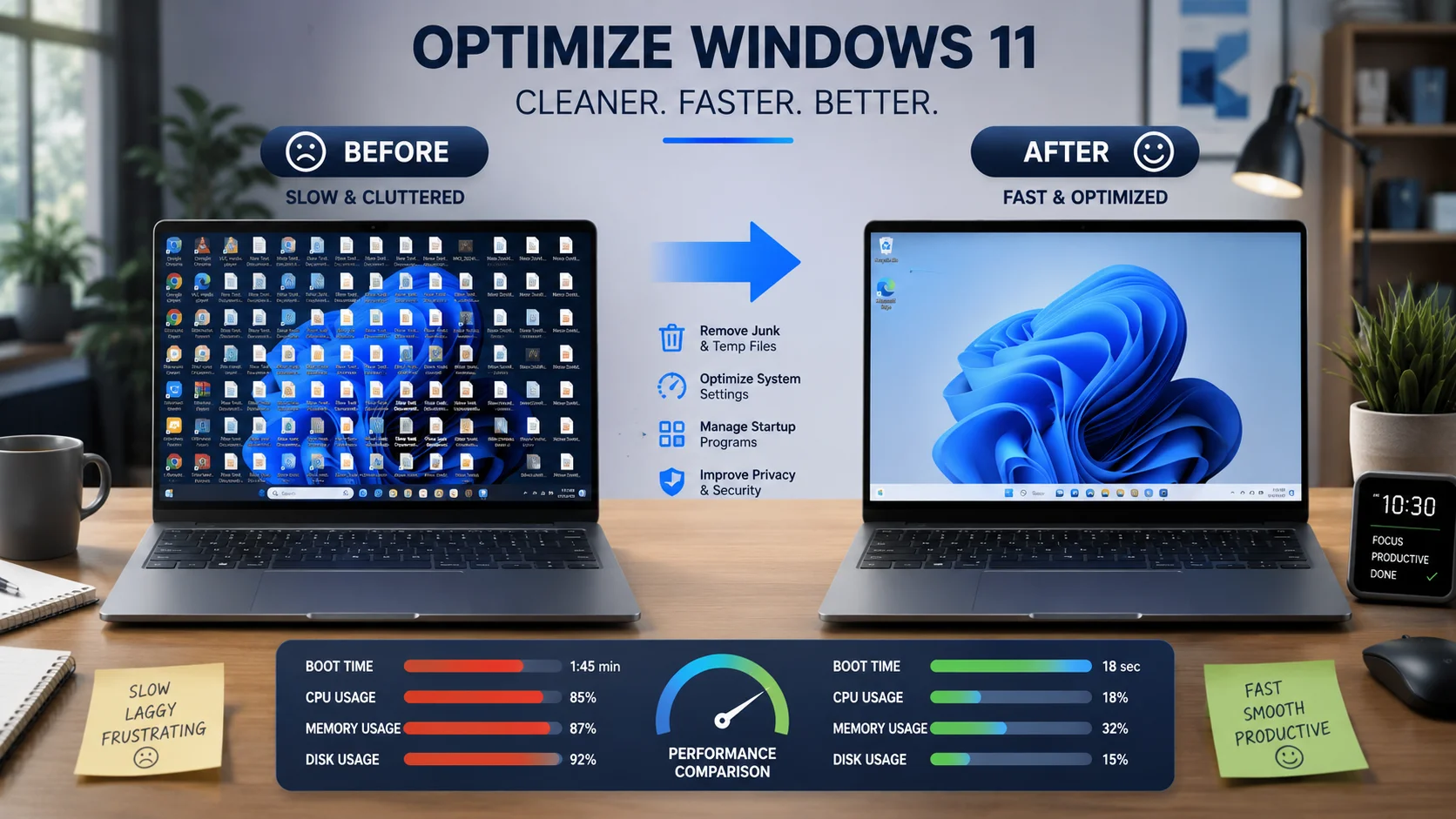
Unused software consumes storage and resources.
Go to:
Settings → Apps → Installed Apps
Uninstall:
Old games
Trial software
Unused utilities
Duplicate programs
Only remove software you recognize.
Free Up Storage Space
Windows performs better with free storage.
Aim for at least 20% free disk space.
Delete:
- Downloads
- Temporary files
- Recycle Bin contents
- Old videos
Use:
Settings → System → Storage
Run Cleanup Recommendations.
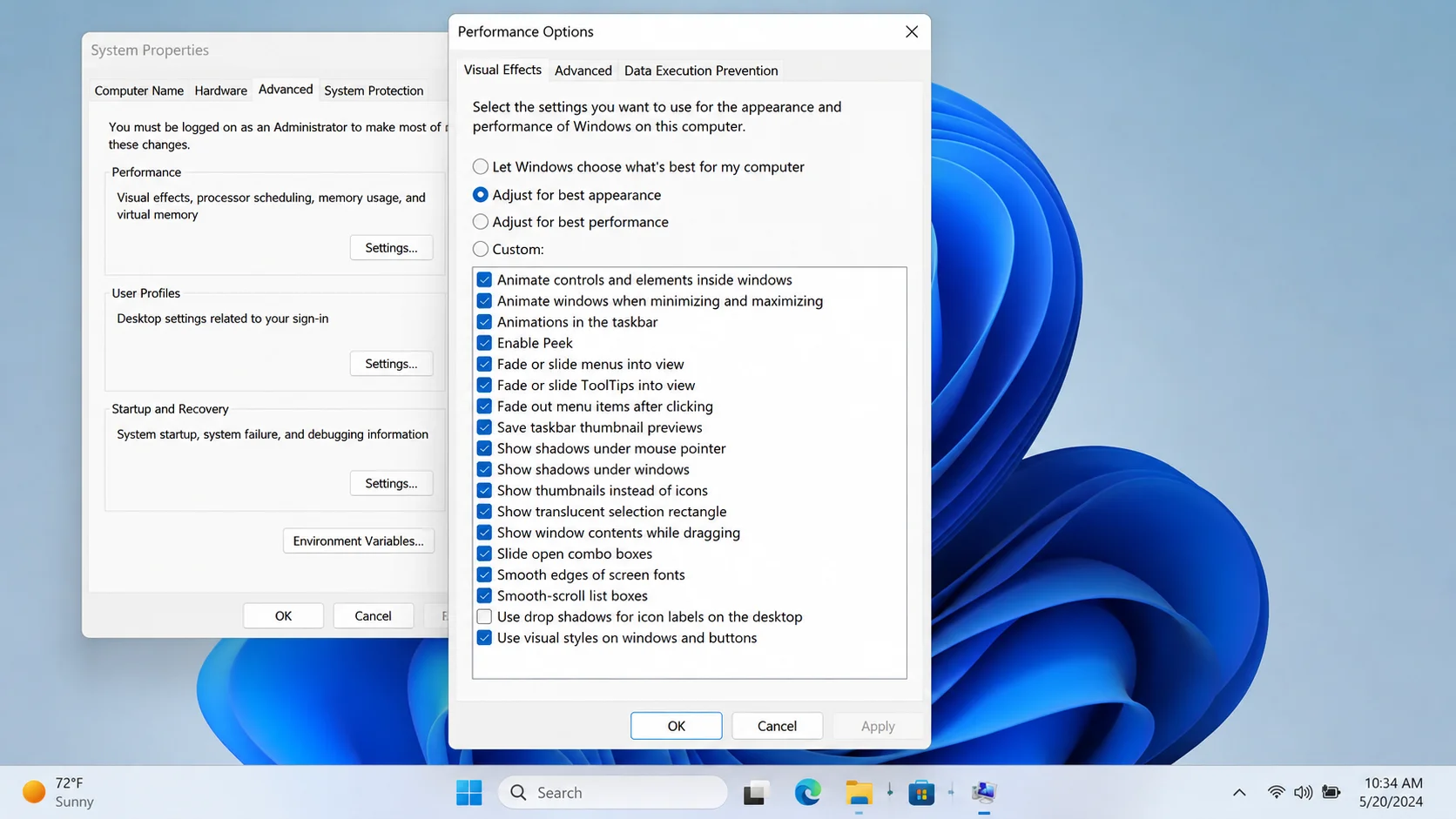
Turn Off Fancy Visual Effects
Animations look nice but consume resources.
Disable them:
Search:
Adjust the appearance and performance of Windows
Choose:
Adjust for best performance
Or disable:
- Animations
- Transparency
- Shadows
This noticeably improves responsiveness.
Enable Storage Sense
Storage Sense automatically removes unnecessary files.
Go to:
Settings → Storage
Enable:
Storage Sense
Schedule automatic cleanup weekly.
Update Windows and Drivers
Updates fix bugs and improve performance.
Check:
Settings → Windows Update
Install:
- Windows updates
- Driver updates
- Security patches
Visit your laptop manufacturer’s support page for BIOS and chipset updates.
Microsoft Windows Update:
https://support.microsoft.com/windows
Intel Driver Support:
https://www.intel.com
AMD Drivers:
https://www.amd.com
Scan for Malware
Viruses can slow down any computer.
Run:
Windows Security
Virus & Threat Protection
Perform a Full Scan.
Avoid downloading software from unknown websites.
Change Power Settings
Many laptops default to balanced mode.
Go to:
Settings → Power & Battery
Select:
Best Performance
Keep your charger connected during demanding tasks.
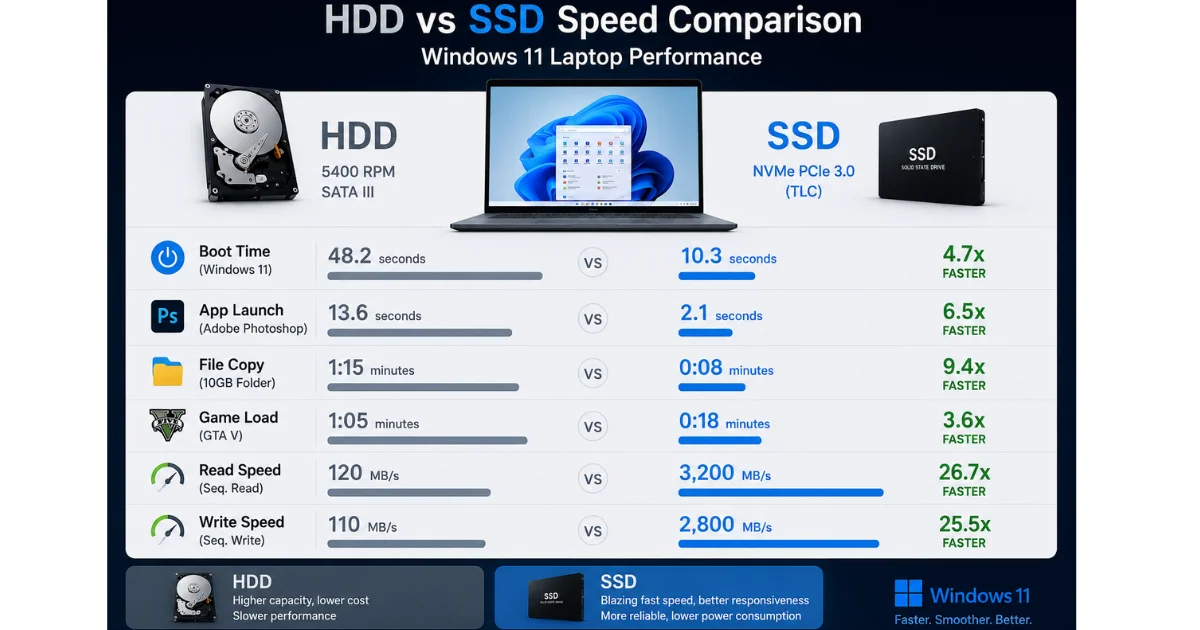
Upgrade to an SSD
If your laptop still uses an HDD, upgrading to an SSD is the biggest improvement you can make.
Benefits:
- Faster boot times
- Faster app loading
- Better multitasking
- Improved file transfers
An SSD can make an older laptop feel new again.

Add More RAM
If possible, upgrade RAM.
Recommended:
Minimum:
8GB
Better:
16GB
More RAM helps with:
- Web browsing
- Office work
- Gaming
- Multitasking
Check your laptop specifications before upgrading.
Keep Your Browser Lightweight
Browsers often use the most RAM.
Tips:
- Close unused tabs.
- Remove unnecessary extensions.
- Enable memory saver features.
- Clear cache regularly.
Reduce Background Apps
Open:
Settings → Apps → Installed Apps
Limit apps running in the background.
Turn off:
- Widgets
- Chat apps
- Gaming overlays
- Cloud sync software you don’t use
Frequently Asked Questions
Does Windows 11 run well on low-end laptops?
Yes. With proper optimization, Windows 11 can run smoothly on budget hardware.
What is the best way to speed up Windows 11?
Disabling startup apps and upgrading to an SSD provide the biggest improvements.
Is 4GB RAM enough for Windows 11?
Windows 11 works with 4GB, but 8GB is much better for everyday use.
Should I disable Windows Defender?
No. Windows Defender provides important security protection.
How much free storage should Windows 11 have?
Keeping at least 20% of your drive free helps maintain performance.
Can an SSD make an old laptop faster?
Yes. An SSD upgrade is often the most effective performance improvement.
Conclusion
Learning how to speed up Windows 11 on a low-end laptop doesn’t require advanced technical skills or expensive upgrades. By disabling unnecessary startup programs, cleaning up storage, reducing visual effects, updating your system, and optimizing background processes, you can make your laptop noticeably faster for everyday tasks. If you’re ready for an even bigger performance boost, upgrading to an SSD or adding more RAM can extend the life of your device for years. Follow these beginner-friendly steps, maintain your system regularly, and you’ll enjoy a smoother, more responsive Windows 11 experience without replacing your laptop.
⚡ AUTOMATE THIS ENTIRE BLUEPRINT IN 10 SECONDS |
Our safe, lightweight optimization utility condenses this entire
guide into a single script.
It triggers an automated safety restore
point, strips structural telemetry, purges system bloatware, and
optimizes memory allocation with zero manual effort required.
💰 Secure Lifetime Access for Only $5