
Windows 11 Secretly Using Your CPU? Disable These Hidden Tracking Features for Better Performance
Windows 11 collects diagnostic and usage data to help improve the operating system, troubleshoot problems, and deliver personalized experiences. While many of these services run quietly in the background, they can contribute to unnecessary CPU activity, disk usage, network traffic, and privacy concerns.
Fortunately, learning how to disable Windows 11 telemetry and background tracking can reduce background resource consumption while giving you more control over your PC. Although some diagnostic services are built into Windows and cannot be completely removed without affecting functionality, many optional tracking features can be limited or disabled safely.
This guide explains what Windows 11 telemetry is, which tracking features you can turn off, and the safest ways to improve privacy and reclaim CPU power without breaking Windows updates or essential services.
⚠️ BEGINNER SAFETY BANNER:
Before modifying any system settings or editing your Windows registry, always create a system restore point. This ensures you can instantly revert your computer back to normal if you make a mistake.
Read our [1-Minute Guide to Windows Restore Points] to set one up now.
Step 1: Turn Off Diagnostic Data in Main Settings
First, we need to disable the user-level toggle switches inside the modern Windows 11 UI panel.
-
Press the Windows Key + I to open the Settings menu.
-
On the left sidebar, click Privacy & security, then select Diagnostics & feedback on the right side.
-
Toggle the switch for Send optional diagnostic data to Off.
-
Scroll down, expand the Delete diagnostic data drop-down menu, and click the Delete button to clear everything Microsoft has already stored on your hard drive.
Step 2: Kill the Background Diagnostic Tracking Services
Even with settings toggled off, the core Windows background service remains running. We need to disable it entirely from booting up.
-
Press the Windows Key + R, type
services.mscinto the box, and press Enter. -
Scroll down through the long alphabetical list until you find the service named Connected User Experiences and Telemetry.
-
Right-click on it and select Properties.
-
In the Properties window, find the Startup type drop-down menu and change it to Disabled.
-
Click the Stop button under Service status to shut it down immediately, then click Apply and OK.
Step 3: Stop Telemetry Tasks in the Task Scheduler
Windows uses its internal clock to force telemetry routines to run when you least expect it, often causing random system spikes.
-
Click your Windows Start search bar, type Task Scheduler, and press Enter.
-
Using the left-hand folder tree, click the small arrows to navigate to this folder:
Task Scheduler Library > Microsoft > Windows > Customer Experience Improvement Program -
In the center pane, you will see two tasks: Consolidator and UsbCeip.
-
Right-click on each of them individually and select Disable.
What Is Windows 11 Telemetry?
Telemetry is Microsoft’s system for collecting diagnostic and usage data.
It helps:
- Detect bugs.
- Improve security.
- Monitor hardware compatibility.
- Deliver updates.
- Enhance Windows features.
Windows 11 primarily collects:
- Device information.
- Performance metrics.
- Error reports.
- Installed applications.
- Feature usage statistics.
Microsoft states that required diagnostic data cannot be completely disabled on standard consumer editions.
Does Telemetry Affect CPU Performance?
elemetry itself usually has a small impact, but combined with background services, scheduled tasks, syncing features, and diagnostics, resource usage can add up.
Potential effects include:
- Higher idle CPU usage.
- Increased disk activity.
- More network traffic.
- Longer startup times.
- Battery drain on laptops.
Reducing unnecessary tracking can improve overall responsiveness.
How to Disable Windows 11 Telemetry and Background Tracking
Start with Windows Privacy settings.
Open:
Settings → Privacy & Security → Diagnostics & Feedback
Disable:
✅ Optional diagnostic data.
✅ Improve inking and typing.
✅ Tailored experiences.
Clear:
Diagnostic data.
This reduces additional data collection while maintaining required system functionality.
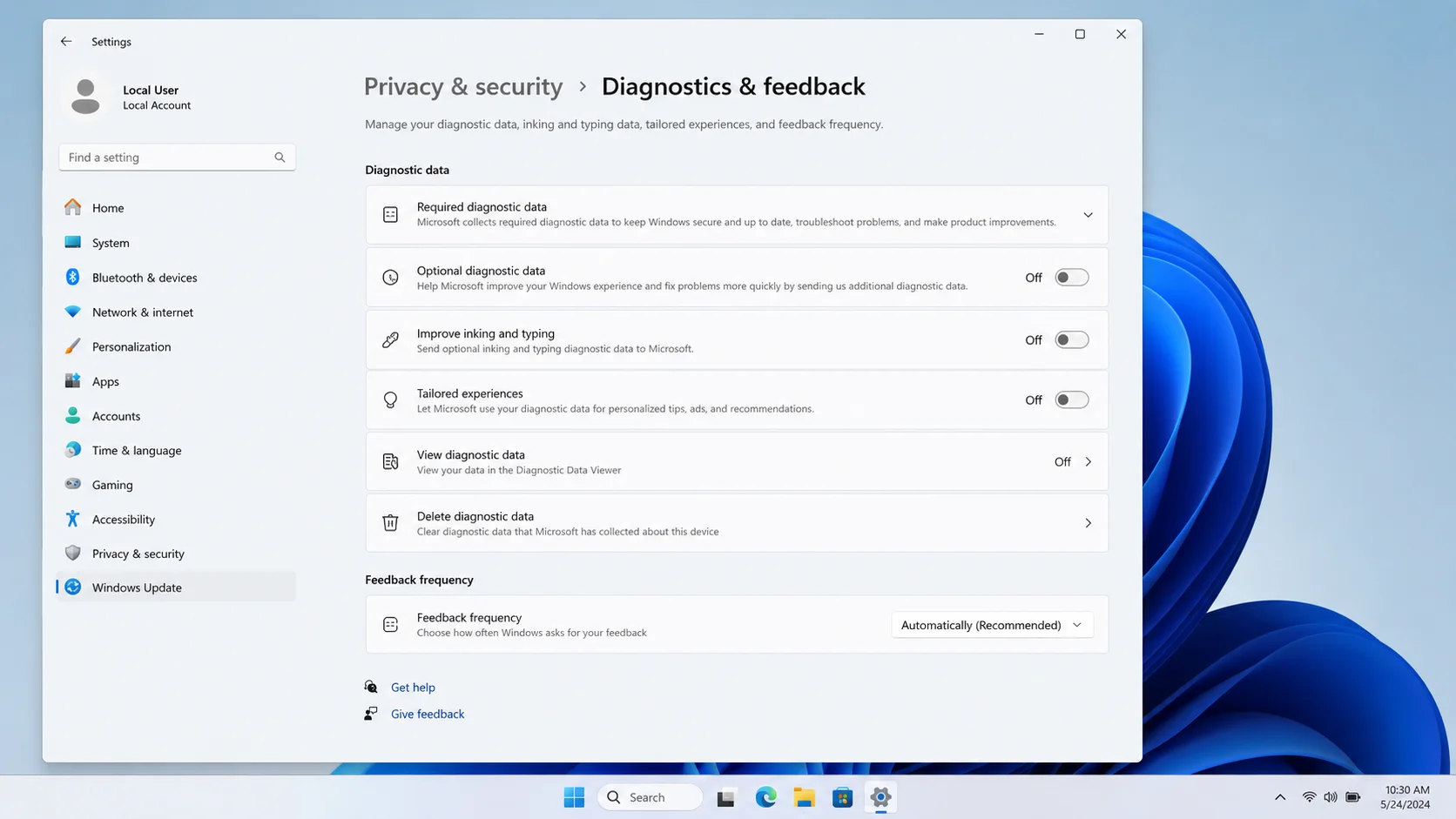
Limit Diagnostic Data Collection
Navigate to:
Settings → Privacy & Security → Diagnostics & Feedback.
Recommended settings:
| Feature | Recommended |
|---|---|
| Required Diagnostic Data | Keep Enabled |
| Optional Diagnostic Data | Disable |
| Tailored Experiences | Disable |
| Improve Typing | Disable |
| Diagnostic Viewer | Disable |
Turn Off Personalized Advertising
Windows uses advertising IDs for app personalization.
Go to:
Settings → Privacy & Security → General.
Disable:
- Let apps show personalized ads.
- Suggested content.
- App launch tracking.
- Recommended settings.
This improves privacy and reduces background activity.
Disable Background Apps
Many apps continue running when closed.
Visit:
Settings → Apps → Installed Apps.
For supported apps:
Advanced Options → Background App Permissions.
Choose:
Never.
Apps worth limiting:
- Xbox
- Teams
- Weather
- News
- Widgets
- Consumer apps
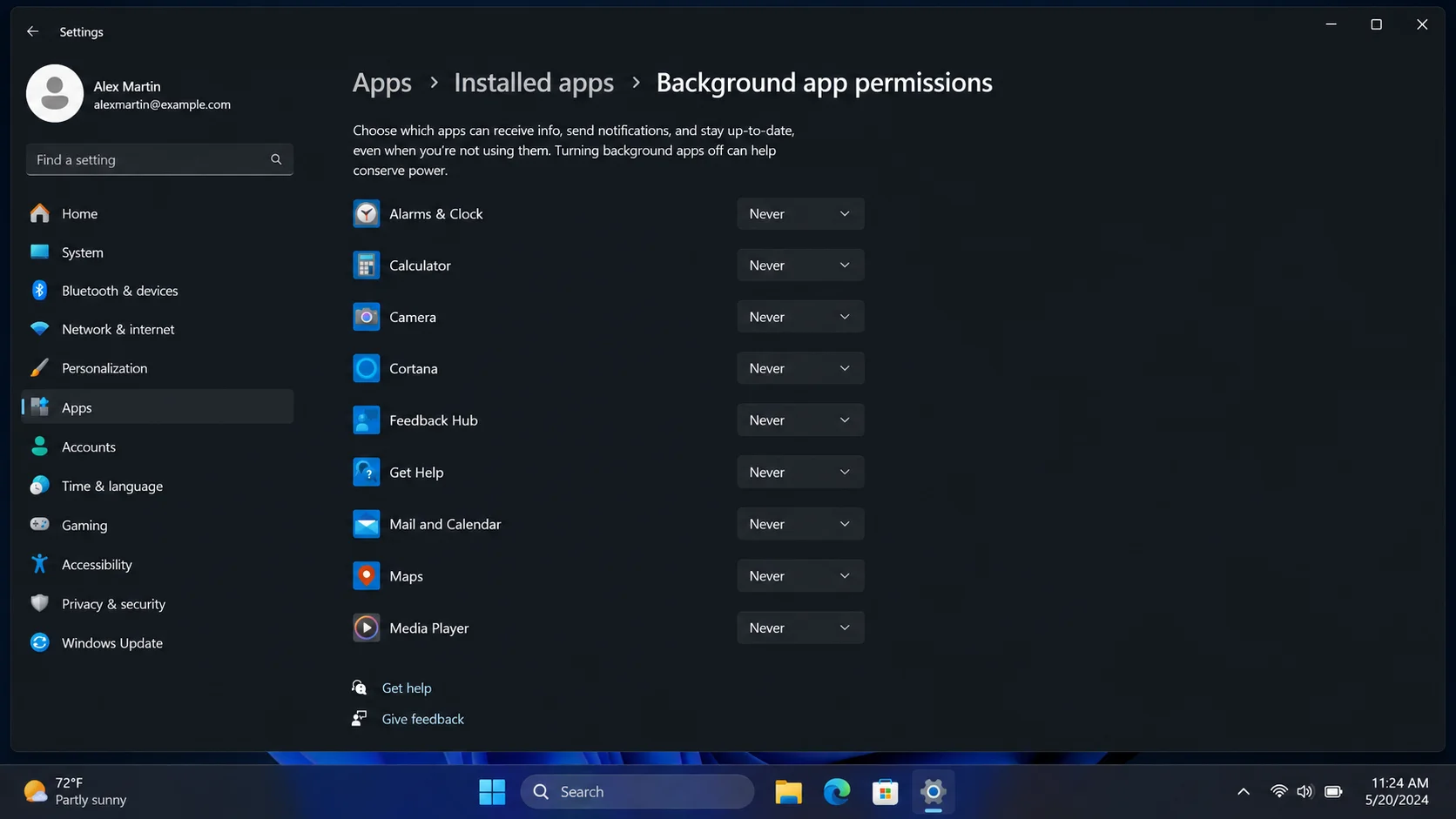
Adjust Privacy Settings
Review:
Settings → Privacy & Security.
Consider disabling access for:
- Camera (unused apps).
- Microphone.
- Contacts.
- Calendar.
- Call history.
- Motion activity.
- Voice activation.
Only disable permissions you don’t use.
Disable Activity History
Open:
Settings → Privacy & Security → Activity History.
Disable:
Store my activity history.
Clear:
Existing activity history.
This limits data stored for cross-device experiences.
Optimize Background Services
Some services can be optimized without affecting Windows stability.
Check:
Task Manager → Processes.
Identify applications consuming CPU while idle.
Common candidates:
- Cloud sync software.
- Gaming launchers.
- OEM utilities.
- Update checkers.
- Chat applications.
Disable unnecessary startup programs.
What You Should Not Disable
Avoid disabling:
❌ Windows Defender.
❌ Windows Update.
❌ Device drivers.
❌ Security services.
❌ TPM features.
❌ Essential networking services.
These components protect system stability and security.
Extra Tips to Reclaim CPU Power
Enable Efficiency Mode
Task Manager supports Efficiency Mode for selected apps.
Remove Startup Bloatware
Reduce automatic startup programs.
Keep Windows Updated
Performance improvements arrive regularly.
Uninstall Unused Software
Remove applications you no longer use.
Monitor Resource Usage
Use Task Manager to identify resource-heavy processes.
Frequently Asked Questions
Can I completely disable Windows 11 telemetry?
Consumer versions cannot fully disable required diagnostic data, but optional telemetry can be reduced significantly.
Does disabling telemetry improve gaming?
It may slightly reduce background CPU activity, although gaming performance gains are generally modest.
Is disabling telemetry safe?
Yes, using built-in privacy settings is safe and supported.
Will Windows updates still work?
Yes. Recommended privacy changes do not prevent updates.
Should I use registry hacks to disable telemetry?
Generally no. Built-in Windows settings provide safer and more reliable control.
Conclusion
Windows 11 telemetry and background tracking are designed to improve security, reliability, and user experience, but many optional data collection features can be limited without affecting the core functionality of your PC. By disabling optional diagnostic data, reducing personalized advertising, managing background app permissions, and reviewing privacy settings, you can reclaim CPU resources, reduce background activity, and improve overall responsiveness. The safest approach is to use Microsoft’s built-in privacy controls rather than aggressive third-party scripts that may cause stability issues. Combined with regular maintenance and performance optimizations, learning how to disable Windows 11 telemetry and background tracking is an effective way to create a faster, more private, and more efficient Windows 11 experience.
🚀 Block All Telemetry in 1-Click (Permanently)
Disabling telemetry manually is a game of cat-and-mouse. Microsoft is notorious for quietly turning these exact services back on whenever a standard Windows quality update runs in the background.
🛡️ SECURE YOUR PC WITH A PERMANENT FIX
Our safe 1-Click Optimization Script doesn’t just toggle settings;
it injects deep, permanent local group policies that completely
block all Microsoft tracking lines, keeping your CPU free forever.