Your Windows 11 PC Isn’t Slow—These Hidden Animation Delays Are Making It Feel That Way
if your Windows 11 PC feels sluggish even though it has modern hardware, visual effects and animation delays could be the hidden culprit. Every time you open the Start menu, switch between windows, or minimize an application, Windows uses small animations to create a smoother experience. While these effects look attractive, they can make your computer feel less responsive.
Fortunately, learning how to disable Windows 11 animation delays is one of the quickest ways to make your PC feel faster without spending money on upgrades. In just a few minutes, you can reduce unnecessary visual effects and enjoy snappier menus, faster window transitions, and a more responsive desktop.
This guide explains exactly how to disable Windows 11 animation delays safely while keeping your system stable and visually appealing.
⚠️ BEGINNER SAFETY BANNER:
Before modifying any system settings or editing your Windows registry, always create a system restore point. This ensures you can instantly revert your computer back to normal if you make a mistake.
Read our [1-Minute Guide to Windows Restore Points] to set one up now.
Step 1: Open the Advanced System Settings
To get to the core performance options in Windows 11, we need to bypass the basic settings app and go straight to the legacy control panel.
-
Press the Windows Key + R on your keyboard to open the Run dialog box.
-
Type
sysdm.cplinto the box and press Enter. -
A small window titled System Properties will pop up. Click on the Advanced tab at the top.
Step 2: Access the Performance Menu
Inside the Advanced tab, Windows houses its hidden performance allocation settings.
-
Look for the Performance section at the very top of the tab.
-
Click the Settings… button.
Step 3: Switch to Custom and Disable Delays
This is where we strip away the bloatware animations causing your UI lag.
-
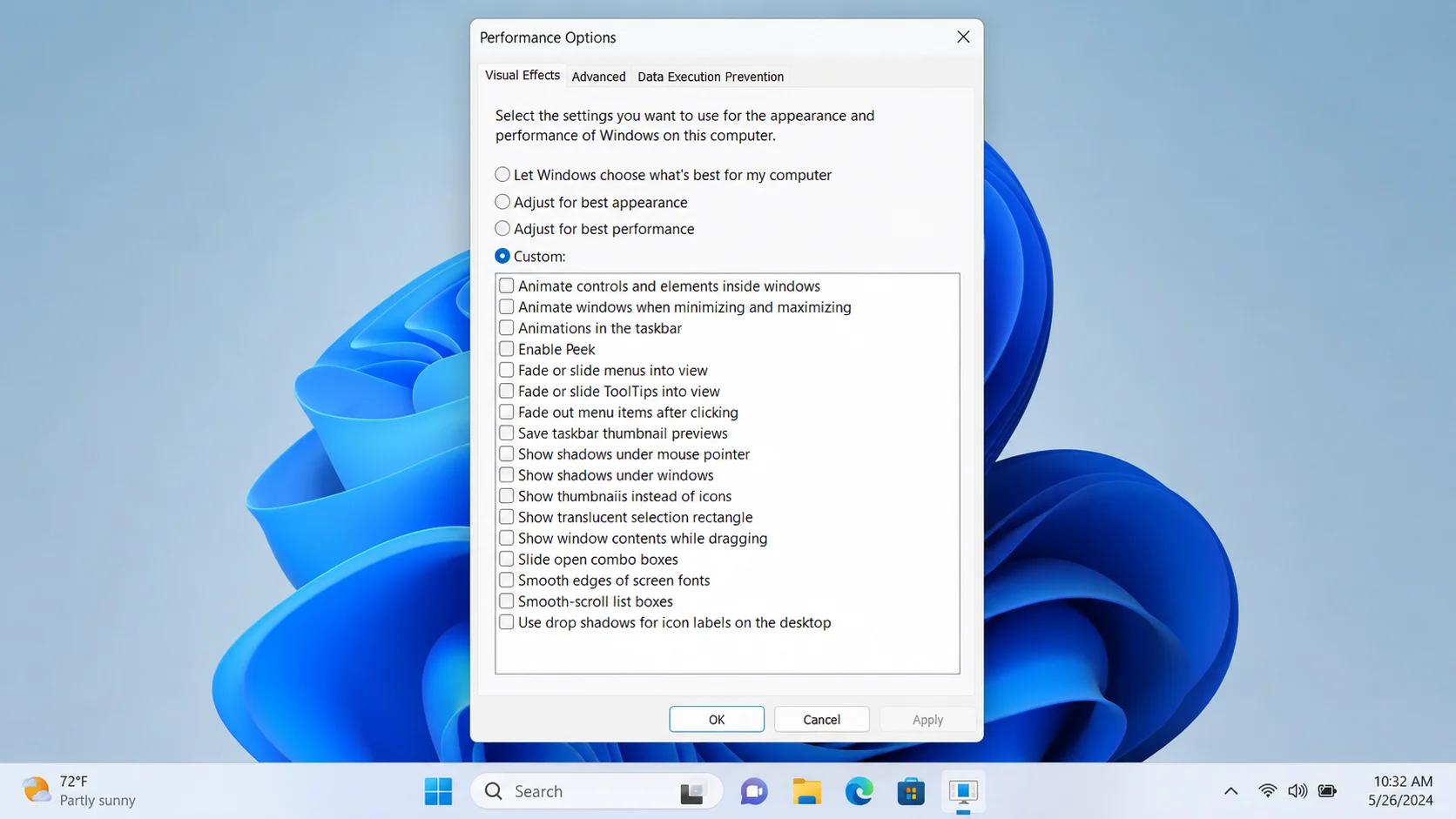
Under the Visual Effects tab, click the radio button that says Custom:.
-
Uncheck the following three specific boxes to maximize your speed:
-
❌ Animate controls and elements inside windows
-
❌ Animate windows when minimizing and maximizing
-
❌ Animations in the taskbar
-
-
(Optional) If your PC is incredibly slow, you can also uncheck Show shadows under windows.
-
Click Apply, then click OK.
Step 4: The Finishing Touch (Registry Speed Hack)
Windows still holds a native 400-millisecond delay timer before dropdown menus appear. Let’s drop that to zero.
-
Press the Windows Key, type
regedit, and press Enter to open the Registry Editor. -
Navigate to this exact path in the top address bar:
HKEY_CURRENT_USER\Control Panel\Desktop -
Look on the right-hand panel for a value named MenuShowDelay.
-
Double-click it, change the Value Data from
400to20, and click OK. -
Restart your computer to let the changes take effect.
What Are Windows 11 Animation Delays?
Animation delays are visual transitions that occur when:
- Opening windows.
- Closing applications.
- Switching desktops.
- Launching the Start menu.
- Opening context menus.
- Minimizing and maximizing programs.
These effects make Windows look polished but require CPU and GPU resources.
Do Animation Delays Affect Performance?
On modern PCs, animations have minimal hardware impact. However, they can affect perceived responsiveness.
Benefits of disabling animations include:
- Faster menu navigation.
- Snappier window switching.
- Improved responsiveness.
- Reduced input delay.
- Better experience on older hardware.
- Slight battery savings on laptops.
Users with lower-end systems often notice the biggest improvement.
How to Disable Windows 11 Animation Delays
The easiest method uses Accessibility settings.
Open:
Settings → Accessibility → Visual Effects
Turn off:
✅ Animation Effects.
Windows immediately disables many transition animations.

Adjust Visual Effects Settings
A more comprehensive approach uses System Properties.
Press:
Windows + R
Type:
SystemPropertiesPerformance.exe
Open:
Visual Effects.
Choose:
Adjust for Best Performance
Or manually disable:
- Animate windows when minimizing and maximizing.
- Fade or slide menus.
- Fade tooltips.
- Slide open combo boxes.
- Animate controls inside windows.
Keep enabled if desired:
- Smooth screen fonts.
- Show thumbnails.
- Show window contents while dragging.
Turn Off Transparency Effects
Transparency effects also use graphics resources.
Go to:
Settings → Personalization → Colors.
Disable:
Transparency Effects.
Benefits:
- Cleaner interface.
- Faster rendering.
- Slight GPU savings.
- Better battery life.
Use Performance Mode
Optimize Windows power settings.
Open:
Settings → System → Power & Battery.
Choose:
Best Performance.
Desktop users should also review advanced power settings for maximum responsiveness.
Registry Tweaks for Advanced Users
Advanced users may reduce menu animation timing.
Press:
Windows + R
Type:
regedit
Navigate to:
HKEY_CURRENT_USER\Control Panel\Desktop
Locate:
MenuShowDelay
Default:
400
Recommended:
200
Aggressive:
100
Avoid setting to zero, as some users experience interface glitches.
Always create a restore point before modifying the registry.
Other Windows 11 Speed Optimizations
Disabling animations works best alongside other tweaks.
Disable Startup Bloatware
Reduce startup load.
Manage Background Apps
Limit unnecessary processes.
Reduce Telemetry
Lower background activity.
Remove Temporary Files
Free storage space.
Keep Drivers Updated
Improve system compatibility.
Upgrade to an SSD
The most noticeable hardware improvement.
Should You Disable All Animations?
Not necessarily.
Many users prefer a balanced approach.
Recommended:
Disable:
✅ Animation effects.
✅ Menu fades.
✅ Transparency.
Keep:
✅ Font smoothing.
✅ Thumbnail previews.
✅ Window content while dragging.
This provides a responsive experience without making Windows look outdated.
Frequently Asked Questions
Does disabling animations make Windows 11 faster?
It mainly improves perceived responsiveness and can slightly reduce resource usage.
Is it safe to disable animation effects?
Yes. These are built-in Windows settings and completely safe to modify.
Can I restore animations later?
Yes. Simply re-enable the settings at any time.
Does disabling animations improve gaming?
Not significantly, but reducing background graphics effects may slightly improve system responsiveness.
Should I change Menu Show Delay?
Reducing it moderately can make menus appear faster, but extreme values are not recommended.
Conclusion
Windows 11’s animations and visual effects add polish to the user experience, but they can also make your PC feel slower than it really is. By learning how to disable Windows 11 animation delays, adjusting visual effects, reducing transparency, optimizing power settings, and carefully tuning advanced options, you can create a noticeably more responsive desktop without spending money on hardware upgrades. Combining these changes with other performance tweaks—such as managing startup apps and limiting background processes—can deliver an even smoother Windows 11 experience. Whether you’re using an older laptop or a powerful gaming PC, reducing unnecessary animations is a quick and safe way to make every click and window transition feel almost instant.
🚀 The 1-Click Solution: Automate This Entire Guide
While doing this manually works perfectly, Microsoft has a habit of resetting these registry keys and visual settings during major Windows updates.
💡 TIRED OF MANUAL TWEAKS?
Our safe, lightweight 1-Click Optimization Script changes this
animation delay, strips system telemetry, and permanently locks in
over 25+ performance optimizations instantly.
|
👉 Download the 1-Click Windows 11 Optimizer ($5)