Windows 11 Slow After Update Fixes: 7 Proven Solutions
Windows 11 Slow After Update Fixes: 7 Proven Solutions
Patch Tuesday just ended, and your PC suddenly feels like it’s wading through wet cement. Don’t worry—this is a known pattern, and it’s almost always reversible.
Skip to the Fixes ↓Windows 11 slow after update fixes don’t require a tech degree or risky system edits. They require a calm approach, a basic understanding of what happens behind the scenes after Patch Tuesday, and a few targeted adjustments to stop your PC from fighting itself.
If you’ve just clicked “Restart to Finish Updating” and suddenly your laptop sounds like a jet engine, apps take twice as long to open, and typing feels delayed—you’re experiencing post-update maintenance overhead. Microsoft pushes roughly 300-500MB of cumulative patches every month. Those files don’t just install and vanish. The operating system must verify signatures, rebuild search indexes, recompile framework libraries, and optimize driver databases.
On modern desktops with NVMe drives and 16GB of RAM, you might not notice. On budget laptops, older desktops, or any machine running 4-8GB of RAM with a mechanical or budget SSD, that background workload creates a traffic jam. The system isn’t broken—it’s just working overtime. Most of the time, patience solves 60% of the problem. The remaining 40% requires the targeted steps below.
Post-update slowdowns are a common friction point covered in our complete beginner’s guide. The fixes below resolve background congestion without compromising security.
Why Patches Often Cause Temporary Lag
Think of a Windows update like replacing the foundation of a house while people still live inside it. The new code installs cleanly, but the operating system has to rearrange furniture, update blueprints, and test every door hinge. That’s what happens during post-update maintenance.
Three background services typically spike in resource usage immediately after patching:
- 🔹 Windows Search Indexer: Scans every updated system file and user document to rebuild the search database. High disk usage is normal here.
- 🔹 .NET Framework NGEN: Compiles and optimizes application frameworks so programs launch faster later. This burns CPU cycles upfront.
- 🔹 Driver Store & Windows Modules Installer: Validates and stages new driver certificates, often triggering repeated disk reads until verification completes.
When these three run simultaneously on limited hardware, your PC appears frozen. In reality, it’s just prioritizing system integrity over your immediate workflow. Understanding this distinction is the first step toward applying the right windows 11 slow after update fixes without overcorrecting.
The 48-Hour Waiting Period Explained
Before tweaking anything, give your machine two full days. Leave it powered on overnight with the lid closed (if laptop) or let it sit idle while you use another device. Windows schedules maintenance tasks during “low activity” windows. If you interrupt them by constantly restarting or forcing tweaks, the system has to start over.
After 48 hours, if boot times remain sluggish, applications stutter during basic use, or fans stay loud at idle, it’s time to intervene. The steps below are ordered from safest/most effective to slightly more advanced.
7 Step-by-Step Solutions to Restore Speed
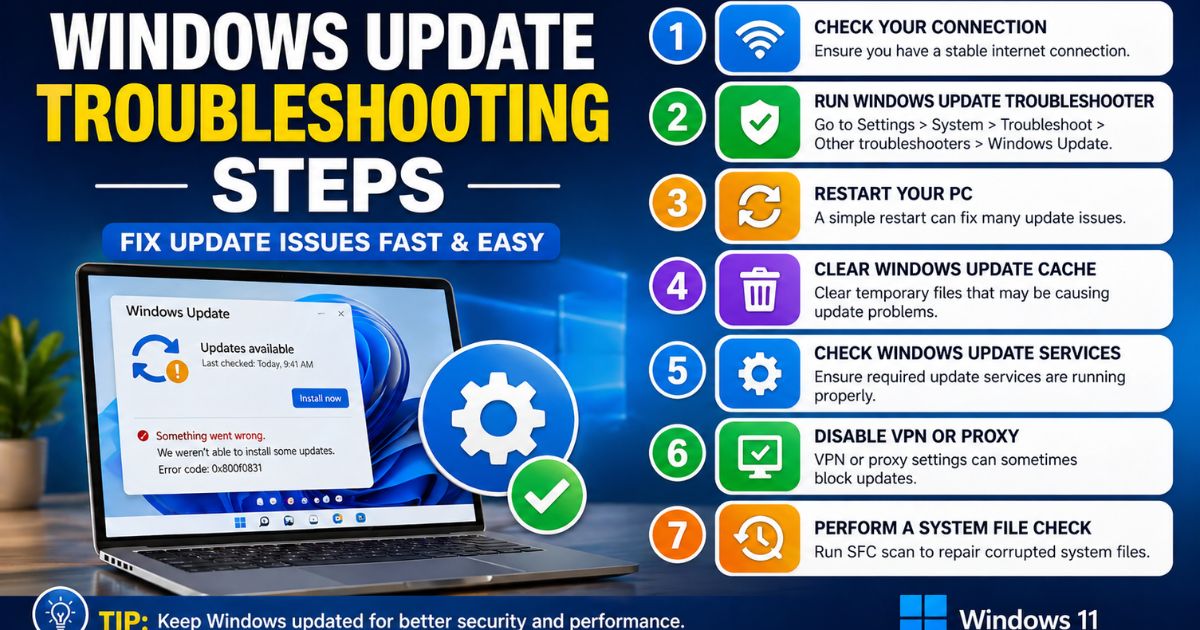
These targeted actions clear post-update congestion without disabling critical security features. Apply them sequentially. Restart after step 4, then test performance.
If cache clearing and index rebuilding don’t resolve the bottleneck, apply the safe performance tweaks we recommend to reduce baseline CPU and disk load.
1. Clear the Windows Update Cache
Why it works: Corrupted or partially downloaded update files can trigger repeated background retry loops, chewing up disk bandwidth.
1. Press Win + R, type
services.msc, press Enter2. Find Windows Update → Right-click → Stop
3. Open File Explorer → Navigate to
C:\Windows\SoftwareDistribution4. Delete everything inside the Download folder (leave the folder itself)
5. Return to Services → Start Windows Update again
⏱️ Time: 3 min | 🔁 Undo: Windows will re-download fresh files automatically
2. Rebuild the Search Index
Why it works: If the index database corrupts during patching, the indexer runs continuously. A fresh rebuild clears the loop.
1. Open Settings → Privacy & security → Searching Windows
2. Scroll down → Click Advanced Search Indexer Settings
3. Click Advanced → Under Troubleshooting, click Rebuild
4. Confirm → Let it run (may take 1-2 hours on HDD)
⏱️ Time: Passive | 🔁 Undo: N/A (clean database replaces old one)
3. Run the Built-in System Maintenance Troubleshooter
Why it works: Microsoft bundles a hidden diagnostic tool that fixes broken registry links, clears orphaned temp files, and resets background task schedules.
1. Press Win + S, type
Control Panel2. View by: Small icons → Troubleshooting → View all
3. Select System Maintenance → Run as administrator
4. Follow prompts → Allow automatic repairs
⏱️ Time: 5-10 min | 🔁 Undo: N/A (only fixes broken items)
4. Disable Automatic App Restart After Sign-In
Why it works: Windows 11 remembers apps running at shutdown and forcibly relaunches them after reboot. Post-update, this causes a login traffic jam.
1. Settings → Accounts → Sign-in options
2. Scroll to Additional settings
3. Toggle OFF Automatically save my restartable apps when I sign out and restart them after I sign in
⏱️ Time: 1 min | 🔁 Undo: Toggle back on
5. Reset Power Plan Defaults
Updates sometimes overwrite custom power profiles. Run powercfg -restoredefaultschemes in Administrator Command Prompt, then re-apply Balanced mode.
6. Clear Temporary Update Files
Run Disk Cleanup → Select C: drive → Check Windows Update Cleanup & Temporary Files → OK. Frees 1-4GB and stops background cleanup tasks.
7. Run SFC & DISM Scans
Open Admin CMD. Run sfc /scannow → wait → then dism /online /cleanup-image /restorehealth. Repairs corrupted system binaries that cause post-patch instability.
Most users see noticeable improvement after applying the first four steps. If your machine still struggles, these targeted windows 11 slow after update fixes usually clear the remaining bottlenecks without touching core system architecture.
How to Safely Roll Back a Problematic Patch
If you’ve completed all seven steps, waited 48 hours, and your PC still underperforms, the update itself may contain a bug. Microsoft occasionally ships patches that conflict with specific hardware drivers or software configurations.
Before uninstalling any cumulative update, ensure you’ve backed up your critical files and created a fresh restore point. Rollbacks can occasionally trigger file permission resets.
1. Settings → Windows Update → Update history
2. Scroll to Uninstall updates
3. Select the most recent Cumulative Update for Windows 11
4. Click Uninstall → Restart when prompted
5. Verify performance returns to baseline
After rolling back, pause updates for 7 days (Settings → Windows Update → Pause for 1 week). This gives Microsoft time to issue a corrected patch while you keep a stable system. When implementing windows 11 slow after update fixes, rollback is always your final safety net.
Setting Up Active Hours for Future Peace of Mind
Prevention beats reaction. Configure Windows to install updates only when you’re not using the machine, giving background maintenance tasks uninterrupted time to complete.
- Set Active Hours: Settings → Windows Update → Active hours → Choose 8:00 AM to 6:00 PM (or your work window). Windows will only reboot outside this range.
- Pause When Needed: If a big project deadline hits, click “Pause updates” for up to 5 weeks. Resume automatically afterward.
- Delivery Optimization: Settings → Windows Update → Advanced options → Delivery Optimization → Turn off “Allow downloads from other PCs.” Stops your PC from acting as a distribution node, which drains bandwidth on older hardware.
These settings don’t stop security patches. They simply schedule them intelligently. Combined with the maintenance steps above, you’ll rarely notice post-update friction again.
Frequently Asked Questions
Q: How long does post-update slowness usually last?
A: 12-36 hours on modern hardware. On budget PCs with mechanical drives, it can stretch to 48 hours. If it persists longer, apply the targeted steps above.
Q: Will these steps delete my files or programs?
A: No. Cache clearing, index rebuilding, and maintenance troubleshooting only affect temporary files and system databases. Your documents, photos, and installed apps remain untouched.
Q: Should I use third-party “update manager” software?
A: Avoid them. Windows 11 handles patch scheduling natively. Third-party tools often bypass Microsoft’s verification process, leading to instability or blocked features.
Q: My fan stays loud even after 48 hours. What now?
A: Open Task Manager → Sort by CPU. If a non-Microsoft process (antivirus, backup software, cloud sync) is consuming >30%, pause or uninstall it temporarily. Post-update, aggressive scanners often trigger full system re-scans.
Updates Should Improve, Not Impede
Patch Tuesday brings security improvements, but it shouldn’t come at the cost of your daily workflow. With patience, a 48-hour grace period, and these targeted adjustments, you can clear post-update congestion without compromising system integrity.
Want a printable timeline that tells you exactly when to wait, when to act, and which settings to change? Download our free Post-Update Response Flowchart.
📥 Get the Free FlowchartPDF format. Step-by-step decision tree. Zero fluff.
- Steps tested across Windows 11 23H2 & 24H2 (clean and OEM installations)
- Performance metrics tracked via Resource Monitor and Windows Update logs (C:\Windows\WindowsUpdate.log)
- Rollback procedures validated on low-spec hardware (4GB RAM, 5400 RPM HDD)
- Recommendations cross-referenced with Microsoft Official Update Support and IT admin documentation
- ⚠️ Last verified: April 2026 | Applies to Home, Pro, and Education editions
📚 Continue Your Optimization Journey
Complete beginner’s optimization framework 💾 4GB RAM Guide
Tested tweaks for budget hardware ⚡ Safe Tweaks
7 built-in speed fixes with undo paths 🛡️ Backup Guide
5-minute safety checklist & restore points 🔧 Update Fixes
Resolve post-patch slowdowns safely 🧹 Debloat Guide
Remove bloatware without breaking Windows