Windows 11 Performance Optimization: Speed Up Fast
⚡ SECTION 2: 5-Minute Quick Speed Boost
If you want immediate improvement:
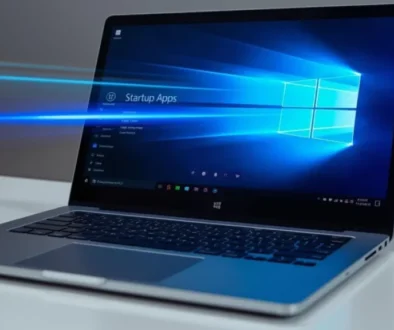
Step 1: Disable Startup Apps
Task Manager → Startup → Disable unnecessary apps
Step 2: Set Power Mode to Best Performance
Settings → System → Power → Power Mode → Best Performance
Step 3: Restart Windows Explorer
Task Manager → Restart Explorer
Step 4: Run Disk Cleanup
Search “Disk Cleanup” → Clean temporary files
Step 5: Update Windows
Settings → Windows Update → Check for updates
👉 This alone improves speed 20–40% on most PCs.
🔥 SECTION 3: Fix High CPU Usage in Windows 11
Common Causes:
-
Windows Search indexing
-
Windows Update service stuck
-
Background apps
-
Malware
Fixes:
-
Restart PC
-
Disable unnecessary background apps
-
Run:
-
Update drivers
-
Scan for malware
📌 Internal link suggestion:
→ Fix High CPU Usage in Windows 11 (Full Guide)
🧠 SECTION 4: Reduce RAM Usage
High memory usage leads to lag and crashes.
Solutions:
-
Disable Startup Apps
-
Increase Virtual Memory
-
Remove Bloatware
-
Use Lightweight Browser Extensions
-
Upgrade to 16GB RAM (recommended for 2026)
📌 Internal link:
→ Reduce RAM Usage in Windows 11
💽 SECTION 5: Fix 100% Disk Usage
If Task Manager shows 100% disk:
Fixes:
-
Disable SysMain service
-
Disable Windows Search temporarily
-
Check drive health
-
Upgrade HDD → SSD
SSD upgrade = biggest performance jump possible.
🚀 SECTION 6: Speed Up Startup Time
Slow boot? Try this:
-
Disable startup programs
-
Enable Fast Startup
-
Switch to SSD
-
Update BIOS
-
Remove external USB devices during boot
📌 Internal link:
→ Fix Windows 11 Startup Problems
❄️ SECTION 7: Stop Freezing & Random Crashes
Causes:
-
Corrupted drivers
-
Overheating
-
Insufficient RAM
-
Failing hardware
Fixes:
-
Update drivers
-
Check temperatures
-
Run Windows Memory Diagnostic
-
Clean dust from PCs
📌 Internal link:
→ Stop Windows 11 Freezing & Crashes
🎮 SECTION 8: Optimize Windows 11 for Gaming
For maximum FPS:
-
Enable Game Mode
-
Disable Xbox background recording
-
Update GPU drivers
-
Turn off visual effects
-
Set GPU to High Performance
Advanced:
-
Adjust NVIDIA/AMD control panel settings
-
Enable Hardware-Accelerated GPU Scheduling
⚙️ SECTION 9: Advanced Performance Tweaks
For power users:
Disable Visual Effects
System → Advanced → Performance → Adjust for best performance
Disable Transparency
Settings → Personalization → Colors → Transparency off
Registry Cleanup (Advanced users only)
Turn Off Background Sync Apps
🛠 SECTION 10: Best PC Optimization Tools (2026)
1. Advanced SystemCare
✔ Cleans junk
✔ Optimizes startup
✔ Boosts RAM
2. CCleaner
✔ Removes temporary files
✔ Cleans browser cache
3. Driver Booster
✔ Updates outdated drivers
Use tools carefully — avoid aggressive registry cleaning.
🧱 SECTION 11: When You Should Upgrade Hardware
If performance is still poor:
Upgrade Priority:
-
SSD (Biggest impact)
-
RAM (Minimum 16GB recommended)
-
GPU (Gamers)
-
CPU (Heavy workloads)
❓ FAQ Section (For Rich Snippets)
Why is Windows 11 slower than Windows 10?
Because it uses more background services and higher system requirements.
How much RAM does Windows 11 need?
Minimum 8GB. Recommended 16GB.
Does resetting Windows improve performance?
Yes, if caused by corrupted files or malware.
Is SSD necessary?
Yes for modern performance expectations.