Windows 11 Startup Problems: 9 Easy Fixes to Boot Your PC Fast
Windows 11 startup problems can make your computer slow, unresponsive, or stuck during boot. These issues are often caused by startup apps, system errors, or corrupted files. In this guide, you’ll learn how to fix Windows 11 startup problems step by step and get your PC booting faster again.
COMMON WINDOWS 11 STARTUP PROBLEMS
Windows 11 startup Problems can appear in different ways, such as:
-
Long boot times
-
Stuck loading screen
-
Repeated restarts
-
Black screen after boot
These problems are often caused by startup apps, corrupted files, driver conflicts, or recent updates.
RESTART & DISCONNECT DEVICES
Before changing settings, try a clean restart.
What to do:
-
Shut down your PC completely
-
Disconnect external devices (USB drives, printers)
-
Turn the PC back on
External devices can sometimes delay or block startup.
CHECK STARTUP PROGRAMS
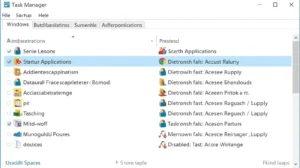
Too many programs loading at startup can slow or block Windows.

How to manage startup apps:
-
Press Ctrl + Shift + Esc
-
Select the Startup tab
-
Disable non-essential apps
Restart and check if startup improves.
CHECK DISK & SYSTEM FILES
Corrupted files can prevent Windows from starting correctly.
Basic checks:
-
Run Check Disk
-
Use System File Checker (SFC)
These tools repair damaged system components safely.
UPDATE OR ROLL BACK DRIVERS
Faulty drivers can cause startup failures.
What to do:
-
Open Device Manager
-
Update recently installed drivers
-
Roll back drivers if problems started after an update
TOOLS THAT CAN HELP
This article may contain affiliate links. We may earn a commission at no extra cost to you if you purchase through our links.
Some users prefer tools that automate diagnostics and repairs.
Helpful tools may include:
-
Startup repair utilities
-
Driver management tools
-
System backup software
➡️ See our full list on the Tools We Recommend page.
FINAL CHECKS
After applying fixes:
-
Restart the PC
-
Confirm Windows loads normally
-
Reconnect external devices one at a time
If startup problems continue, professional support is required.
Frequently Asked Questions
Why does Windows 11 take so long to start?
Slow startup is usually caused by too many startup programs, outdated drivers, or system file issues.
Can startup problems be fixed without reinstalling Windows?
Yes. Most startup issues is resolved using built-in Windows tools and basic troubleshooting.
Is Startup Repair safe to use?
Yes. Windows Startup Repair is designed to fix boot issues without affecting personal files.
Should I disable all startup apps?
No. Only disable apps you don’t need immediately. Keep security software enabled.
CONCLUSION
Windows 11 startup problems is resolved with simple steps. By checking startup apps, using built-in repair tools, and keeping drivers updated, most users can restore normal boot behavior without reinstalling Windows.