
⚡ Frustrated by 100% CPU Usage? Discover the Powerful Fixes That Can Make Windows 11 Fast Again!
If you’re searching for how to fix high CPU usage in Windows 11, you’ve probably noticed your computer becoming slow, overheating, or making loud fan noises. High CPU usage can make even simple tasks like browsing the web or opening programs frustratingly slow.
Fortunately, most Windows 11 CPU problems can be fixed without replacing your hardware. In this beginner-friendly guide, you’ll learn the most effective ways to identify what’s causing the issue and how to reduce CPU usage for a smoother and faster PC experience.
Whether your CPU usage is constantly at 100% or spikes unexpectedly, these proven solutions can help restore your computer’s performance.
⚠️ BEGINNER SAFETY BANNER:
Before modifying any system settings or editing your Windows registry, always create a system restore point.
This ensures you can instantly revert your computer back to normal if you make a mistake.
Read our [1-Minute Guide to Windows Restore Points] to set one up now.
What Causes High CPU Usage in Windows 11?
Common reasons include:
- Too many background apps
- Startup programs
- Malware infections
- Outdated drivers
- Windows updates
- Faulty software
- Search indexing
- Corrupted system files
- Insufficient RAM
Finding the cause is the first step toward fixing it.
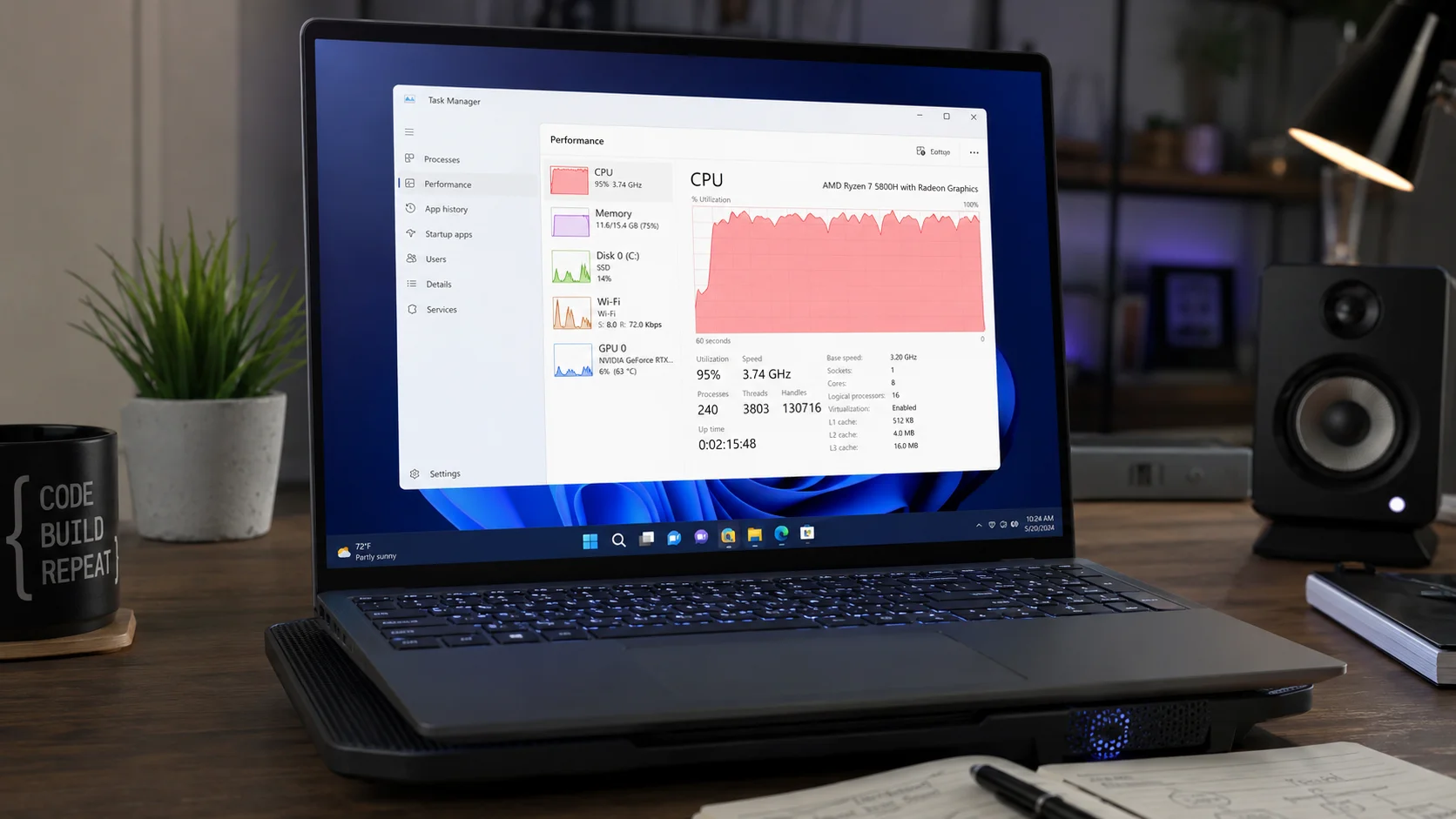
Restart Your Computer
A restart clears temporary processes and memory leaks.
Simply:
Start → Power → Restart
Many CPU spikes disappear after a clean reboot.
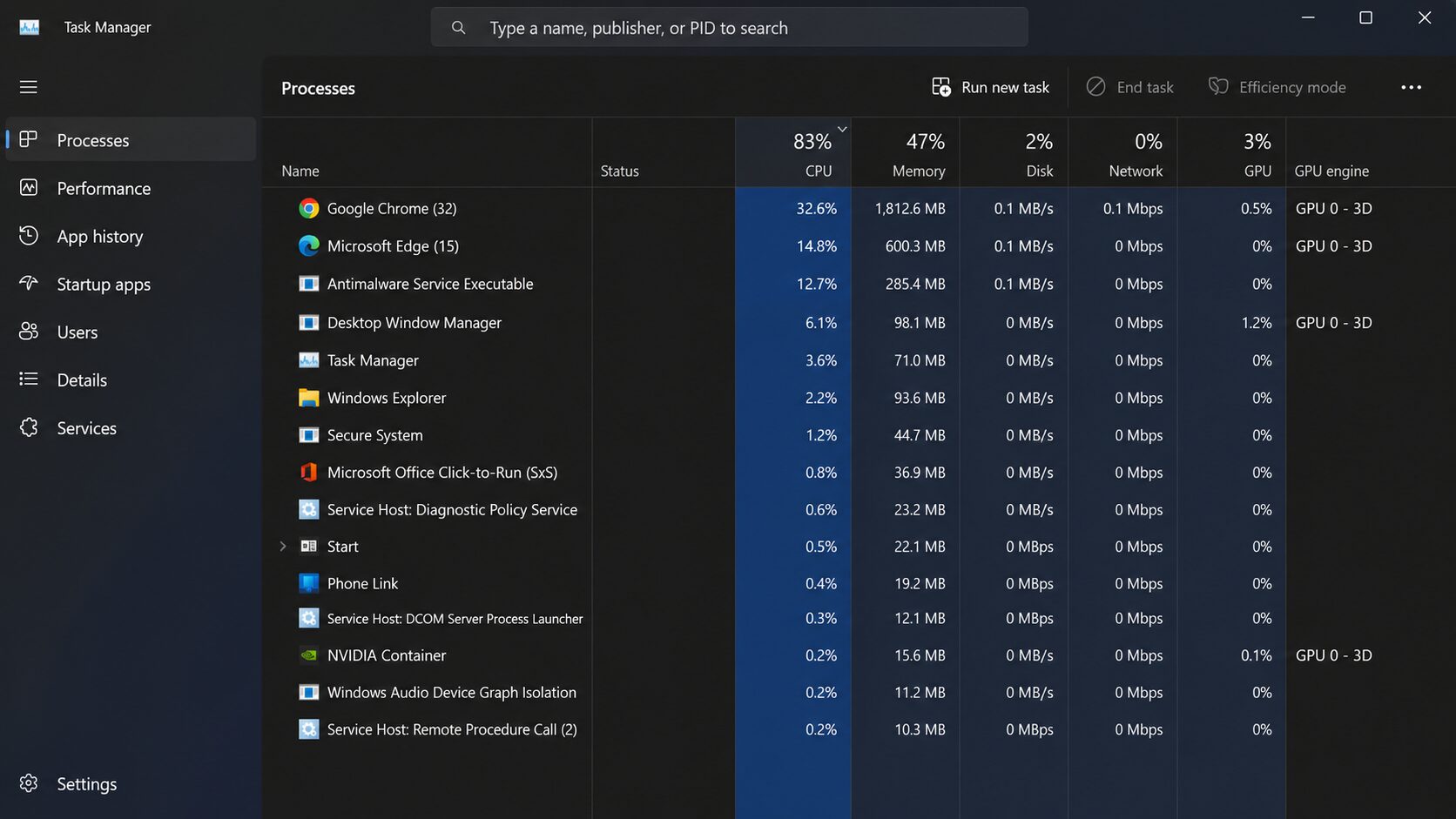
Identify CPU-Hungry Processes
Task Manager helps find the culprit.
Steps:
- Press Ctrl + Shift + Esc.
- Click Processes.
- Sort by CPU usage.
- Identify apps using excessive resources.
Common offenders:
- Web browsers
- Windows Update
- Antivirus scans
- Cloud sync apps
- Game launchers
Close programs you don’t need.
Disable Startup Programs to Fix High CPU Usage in Windows 11
Too many startup apps increase CPU load.
Open:
Task Manager → Startup Apps
Disable:
- Spotify
- Discord
- Teams
- Adobe Updater
- Steam
- Epic Games Launcher
Leave security software enabled.
Update Windows
Microsoft frequently releases performance fixes.
Go to:
Settings → Windows Update
Install:
- Security updates
- Feature updates
- Driver updates
Restart afterward.
Scan for Malware
Malicious software often causes unexplained CPU spikes.
Open:
Virus & Threat Protection
Run a Full Scan.
Avoid downloading programs from unknown websites.
Disable Background Apps
Many apps continue running even when closed.
Open:
Settings → Apps → Installed Apps
Limit background permissions for unnecessary apps.
Turn off:
- Widgets
- Chat apps
- Game overlays
- Sync services
Update Device Drivers
Outdated drivers can create CPU bottlenecks.
Update:
- Graphics driver
- Chipset driver
- Network adapter
- Audio driver
Visit your laptop or motherboard manufacturer’s support page.
Check Windows Search Indexing
Search indexing can temporarily increase CPU usage.
Go to:
Settings → Privacy & Security → Searching Windows
Choose:
Classic indexing.
Exclude large folders if necessary.
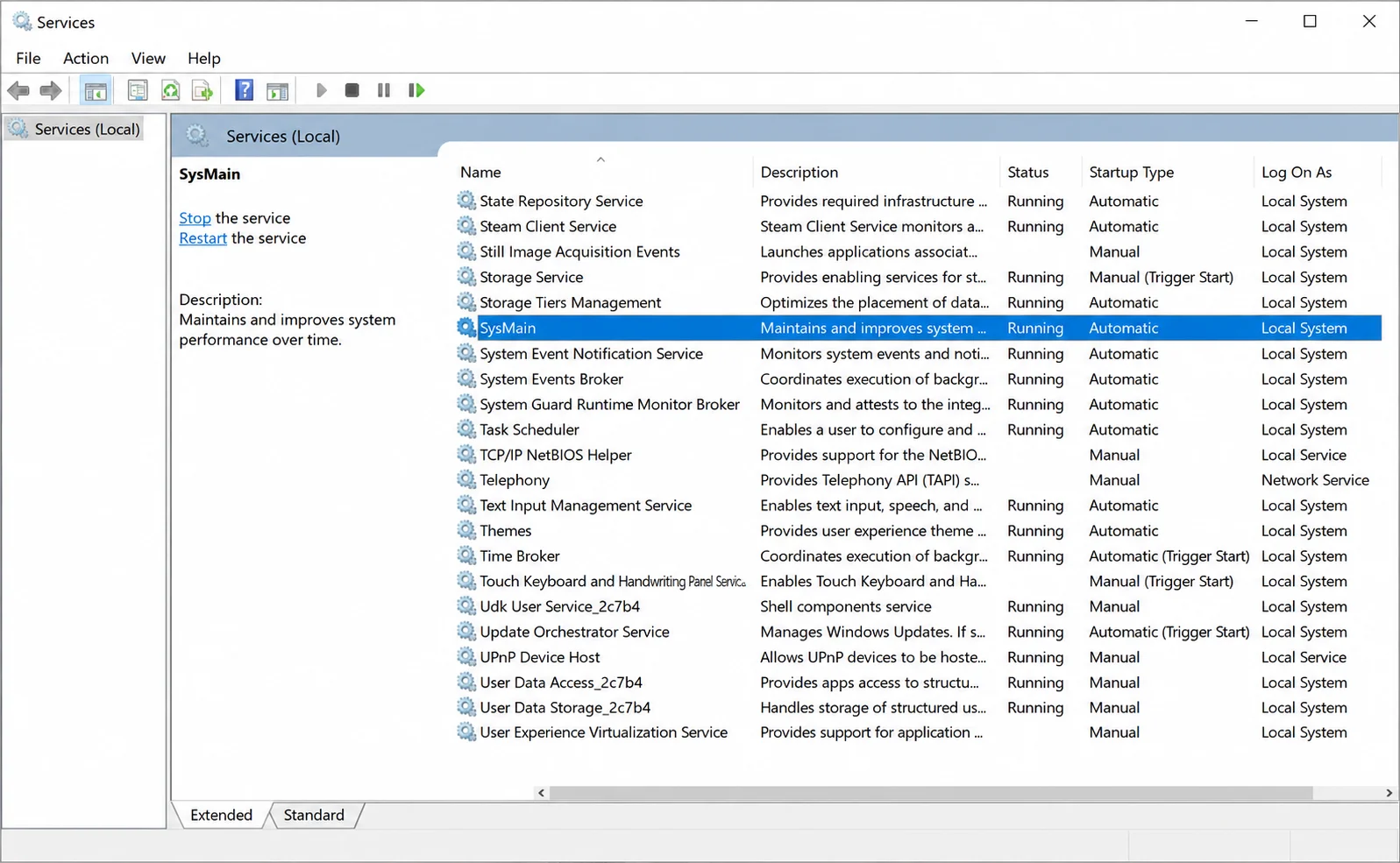
Disable SysMain
SysMain improves performance but occasionally causes CPU spikes.
Press:
Windows + R
Type:
services.msc
Find:
SysMain
Stop the service and set Startup Type to Disabled if it consistently causes issues.
Adjust Power Settings
Balanced mode may not always perform optimally.
Open:
Settings → Power & Battery
Select:
Best Performance
Desktop users should also check advanced power settings.
Check for Overheating
High temperatures force CPUs to work inefficiently.
Signs:
- Loud fans
- Slow performance
- Random shutdowns
Solutions:
- Clean dust
- Improve airflow
- Use a cooling pad
- Replace thermal paste if necessary
Repair Corrupted System Files
Corrupted Windows files can increase CPU usage.
Open Command Prompt as Administrator.
Run:
sfc /scannowThen:
DISM /Online /Cleanup-Image /RestoreHealthRestart after completion.
Upgrade Your Hardware
If CPU usage remains high, consider upgrades.
Best improvements:
SSD
Faster loading and better responsiveness.
RAM
Upgrade to:
8GB minimum
16GB recommended.
Better Cooling
Helps maintain peak CPU performance.
Frequently Asked Questions
Why is my CPU usage at 100% in Windows 11?
Background apps, malware, Windows updates, or faulty drivers are common causes.
How do I reduce CPU usage quickly?
Restart your PC, close unnecessary apps, and disable startup programs.
Can malware cause high CPU usage?
Yes. Crypto miners and viruses often consume large amounts of CPU power.
Does Windows 11 use more CPU than Windows 10?
Windows 11 may use more resources depending on hardware and enabled features.
Should I disable SysMain?
Only if it consistently causes excessive CPU usage.
Is high CPU usage bad?
Sustained high CPU usage can reduce performance and increase heat, potentially shortening hardware lifespan.
Conclusion
Knowing how to fix high CPU usage in Windows 11 can save you from constant slowdowns, overheating, and frustrating performance issues.
In most cases, identifying resource-heavy processes, disabling unnecessary startup programs, updating Windows and drivers, scanning for malware, and optimizing system settings can dramatically reduce CPU usage.
For older computers, upgrading to an SSD or adding more RAM can provide an even bigger improvement.
By following these practical steps and maintaining your PC regularly, you can keep Windows 11 running faster, cooler, and more efficiently for everyday work, gaming, and multitasking.
⚡ AUTOMATE THIS ENTIRE BLUEPRINT IN 10 SECONDS
Our safe, lightweight optimization utility condenses this entire
guide into a single script.
It triggers an automated safety restore
point, strips structural telemetry, purges system bloatware, and
optimizes memory allocation with zero manual effort required.
💰 Secure Lifetime Access for Only $5