How to Speed Up Windows 11 (2026) – Fix Slow PC Instantly & Boost Performance
Over time, Windows 11 performance drops due to:
- Too many startup apps
- Background services overload
- High RAM and CPU usage
- Outdated drivers
- Visual effects consuming resources
If you want to truly speed up Windows 11, you must address all these layers—not just one.
⚡ 2. Quick Wins to Speed Up Windows 11
Start with these immediate fixes:
✅ Restart Your PC
Clears temporary memory and stuck processes.
✅ Update Windows
Go to:
Settings → Windows Update
✅ Free Up Storage
Keep at least 20% free disk space

🔥 3. Disable Startup Programs (Huge Speed Boost)
One of the most effective ways to speed up Windows 11 startup.
Steps:
- Press Ctrl + Shift + Esc
- Go to Startup Apps
- Disable unnecessary programs
Focus on:
- Discord
- Spotify
- Auto updaters
👉 Full guide: Disable Startup Programs Windows 11 (cluster article)
🧠 4. Reduce RAM Usage in Windows 11
High RAM usage = slow performance.
Fixes:
- Close unused apps
- Disable background apps
- Use lightweight browsers
Advanced Tip:
Turn off background permissions:
Settings → Apps → Installed Apps → Background permissions
👉 Related: Reduce RAM Usage Windows 11

⚙️ 5. Fix High CPU Usage
If your CPU is constantly at 90–100%, your PC will lag badly.
Steps:
- Open Task Manager
- Sort by CPU usage
- End unnecessary tasks
Common culprits:
- Windows Search Indexing
- Antimalware Service Executable
👉 Full fix: Fix High CPU Usage Windows 11
🧩 6. Optimize Background Services
Most guides ignore this—but it’s critical.
Steps:
- Press Win + R → services.msc
- Disable non-essential services:
Examples:
- Xbox services (if not gaming)
- Print Spooler (if no printer)
⚠️ Do NOT disable critical Microsoft services
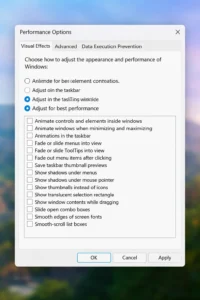
🎨 7. Adjust Visual Effects for Performance
Windows 11 prioritizes visuals over speed by default.
Fix:
- Search: Performance Options
- Select:
👉 Adjust for best performance
This alone can significantly speed up Windows 11 on low-end PCs
💾 8. Storage & Disk Optimization
Run Disk Cleanup:
- Search “Disk Cleanup”
- Remove temporary files
Enable Storage Sense:
Settings → System → Storage
Defragment HDD (if not SSD)
🔧 9. Advanced Tweaks (Safe)
Disable Transparency Effects
Settings → Personalization → Colors → OFF
Turn Off Background Apps
Settings → Privacy → Background apps
Registry Optimization (Safe Only)
Avoid risky tweaks—stick to proven settings
🎮 10. Optimize Windows 11 for Gaming
❓ FAQ (Snippet Optimized)
How do I make Windows 11 faster on a low-end PC?
Disable startup apps, reduce RAM usage, and turn off visual effects.
Why is Windows 11 so slow?
Usually due to background apps, high CPU usage, or low storage.
Does disabling startup apps help?
Yes—this is one of the fastest ways to speed up Windows 11.
🏁 CONCLUSION
If you apply all these steps, you will dramatically speed up Windows 11, even on low-end PCs.
The key is combining:
- Startup optimization
- RAM + CPU control
- Background service tuning