Optimize Windows 11 for Gaming Low-Spec: Boost FPS Without Upgrades

Optimize Windows 11 for Gaming Low-Spec: Boost FPS Without Upgrades
You don’t need a $2,000 gaming rig to enjoy your favorite games. With the right Windows 11 tweaks, budget laptops and integrated graphics can deliver playable frame rates. Here’s exactly how.
Jump to the Tweaks ↓Optimize windows 11 for gaming low-spec hardware isn’t about magic tricks or expensive upgrades. It’s about understanding where your limited resources go and redirecting them to what matters: your game.
Whether you’re running Intel UHD Graphics, AMD Vega integrated graphics, or an aging dedicated GPU with 2GB VRAM, Windows 11’s default settings work against you. Background animations, telemetry services, visual effects, and automatic updates all compete for the same CPU cycles and GPU memory your game desperately needs.
This guide strips away the bloat using safe, reversible tweaks tested on real budget hardware. You’ll learn how to squeeze every frame per second from your system, reduce input lag, and create a gaming environment that prioritizes performance over aesthetics. No registry hacks. No risky third-party “game boosters.” Just proven Windows settings that work.
Why Low-Spec Gaming Needs Different Optimization
High-end gaming PCs have resources to spare. Your integrated graphics laptop does not. Every percentage point of GPU utilization matters. Every megabyte of VRAM counts. This means optimization strategies that work on RTX 3080 systems can actually hurt performance on budget hardware.
Low-spec gaming optimization focuses on three priorities:
- 🔹 Minimize background GPU usage: Disable Windows visual effects, hardware acceleration in browsers, and background apps that use GPU
- 🔹 Maximize CPU availability: Stop telemetry, indexing, and update services from stealing CPU cycles during gameplay
- 🔹 Reduce memory pressure: Free up RAM so your integrated GPU has more system memory to borrow for VRAM
When you optimize windows 11 for gaming low-spec systems, you’re not trying to achieve 144 FPS at Ultra settings. You’re creating stable, playable frame rates (30-60 FPS) at Low-Medium settings with minimal stuttering and input lag.
7 Performance Tweaks for Integrated Graphics
Apply these in order. Test your game after each tweak to measure improvement. Most users see 15-25% FPS gains after completing all seven steps.
1. Disable Hardware-Accelerated GPU Scheduling (HAGS)
Why it works: HAGS is designed for high-end GPUs. On integrated graphics, it adds overhead without benefit, actually reducing FPS by 5-10%.
1. Settings → System → Display → Graphics settings
2. Toggle OFF Hardware-accelerated GPU scheduling
3. Restart your PC
⏱️ Time: 2 min | 📈 Expected gain: 5-10% FPS | 🔁 Undo: Toggle back ON
2. Set Power Plan to “Best Performance”
Why it works: Laptops throttle CPU/GPU to save battery. For gaming, you need maximum power delivery, even if it reduces battery life.
1. Control Panel → Hardware and Sound → Power Options
2. Select High performance (if hidden, click “Show additional plans”)
3. Click “Change plan settings” → “Change advanced power settings”
4. Expand “Processor power management” → Set minimum to 100%
5. Expand “PCI Express” → Link State Power Management → OFF
⏱️ Time: 3 min | 📈 Expected gain: 8-15% FPS | 🔁 Undo: Switch to “Balanced”
3. Disable Windows Visual Effects Completely
Why it works: Animations, transparency, and shadows consume GPU resources. On integrated graphics, disabling them frees up 10-15% GPU capacity for gaming.
1. Press Win + R, type
sysdm.cpl, press Enter2. Advanced tab → Performance → Settings
3. Select Adjust for best performance
4. Re-check ONLY: “Smooth edges of screen fonts” and “Show thumbnails instead of icons”
5. Click Apply
⏱️ Time: 2 min | 📈 Expected gain: 10-15% FPS + reduced input lag | 🔁 Undo: Select “Let Windows choose”
4. Disable Game Bar & Background Recording
Why it works: Xbox Game Bar constantly monitors gameplay and can record in the background. This consumes CPU/GPU cycles and adds input lag.
1. Settings → Gaming → Xbox Game Bar
2. Toggle OFF Enable Xbox Game Bar
3. Go to Gaming → Captures
4. Toggle OFF Record in the background while I’m playing a game
5. Go to Gaming → Game Mode
6. Toggle ON Game Mode (helps on low-spec by prioritizing game resources)
⏱️ Time: 2 min | 📈 Expected gain: 5-8% FPS + lower input lag | 🔁 Undo: Toggle features back ON
5. Disable Browser Hardware Acceleration
Why it works: Chrome, Edge, and Firefox use GPU acceleration for rendering. When gaming, this competes for integrated GPU resources.
1. Settings → System (or System and performance)
2. Toggle OFF Use hardware acceleration when available
3. Restart browser
Note: Re-enable when not gaming for smoother browsing
⏱️ Time: 1 min | 📈 Expected gain: 3-5% FPS stability | 🔁 Undo: Toggle back ON
6. Increase Virtual Memory (Pagefile)
Why it works: Integrated GPUs borrow system RAM as VRAM. When RAM fills up, Windows uses the pagefile. Increasing it prevents stuttering when VRAM is maxed out.
1. sysdm.cpl → Advanced → Performance Settings → Advanced
2. Virtual memory → Change
3. Uncheck “Automatically manage”
4. Select Custom size: Initial 2048 MB, Maximum 4096 MB (for 4-8GB RAM systems)
5. Click Set → OK → Restart
⏱️ Time: 3 min | 📈 Expected gain: Reduced stuttering, not higher FPS | 🔁 Undo: Re-check “Automatically manage”
7. Disable Windows Update During Gaming
Why it works: Windows Update can trigger downloads and installations during gameplay, causing massive FPS drops. Set Active Hours to prevent this.
1. Settings → Windows Update → Advanced options
2. Set Active Hours to your typical gaming time (e.g., 6 PM to 12 AM)
3. Go to Delivery Optimization
4. Toggle OFF Allow downloads from other PCs
⏱️ Time: 2 min | 📈 Expected gain: Prevents random FPS drops | 🔁 Undo: Adjust Active Hours
After applying all seven tweaks, you should see noticeable improvements when you optimize windows 11 for gaming low-spec systems. Test your favorite game and compare FPS using built-in benchmarks or MSI Afterburner.
Game Mode: Enable or Disable on Low-Spec?
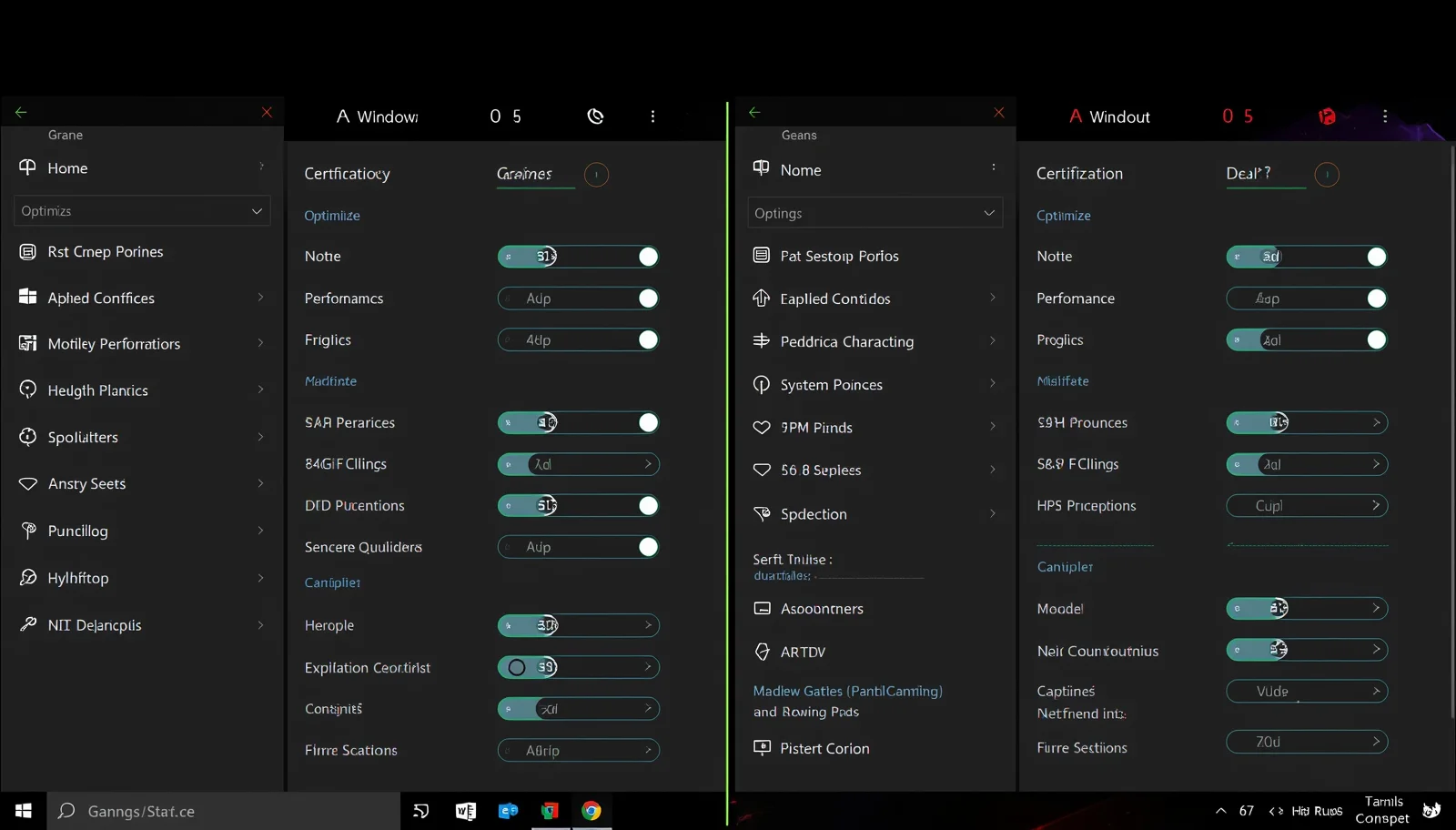
This is controversial. On high-end systems, Game Mode provides minimal benefit. On low-spec hardware, it can actually help—but only if configured correctly.
However, Game Mode works best when combined with the tweaks above. Alone, it provides only 3-5% FPS improvement. Combined with disabled visual effects and optimized power settings, you’ll see 15-25% gains.
Driver Settings That Actually Matter
Integrated graphics drivers have optimization settings that can improve gaming performance. Here’s what to adjust:
Intel Graphics (UHD/Iris Xe):
- Open Intel Graphics Command Center
- System → Power → On battery: Maximum Performance
- Display → Color Enhancement: OFF (adds input lag)
- Games → Global Settings → Performance mode: Balanced or Performance
AMD Integrated Graphics (Vega):
- Open AMD Radeon Software
- Gaming → Global Graphics → Radeon Anti-Lag: Enabled
- Radeon Image Sharpening: Enabled (improves clarity at lower resolutions)
- Wait for Vertical Refresh: Always Off (reduces input lag)
These driver-level optimizations complement the Windows settings when you optimize windows 11 for gaming low-spec configurations, providing an additional 5-10% performance boost.
Killing Background Processes Safely
Before launching your game, close these resource-hungry applications:
Always Close Before Gaming:
- Web browsers: Chrome, Edge, Firefox (even with one tab, they use 200-500MB RAM)
- Discord: Disable “Hardware Acceleration” in Discord settings, or close it entirely
- Spotify/Streaming apps: These buffer and use CPU/GPU even when paused
- Cloud sync: OneDrive, Google Drive, Dropbox (pause syncing before gaming)
- Antivirus scans: Schedule full scans for times when you’re not gaming
Use Task Manager (Ctrl + Shift + Esc) to identify what’s running. Sort by CPU or Memory to find hidden resource hogs.
Gaming FAQ for Budget Hardware
Q: What games can I run on integrated graphics?
A: Esports titles (Valorant, League of Legends, CS2, Rocket League) run at 60+ FPS on low settings. Indie games (Hades, Stardew Valley, Hollow Knight) run smoothly. Older AAA titles (GTA V, Witcher 3) can achieve 30-45 FPS on lowest settings.
Q: Should I upgrade RAM or SSD first for gaming?
A: RAM first if you have 4GB or less. Integrated graphics borrow system RAM as VRAM, so 8GB minimum is essential. If you already have 8GB, an SSD reduces loading times but won’t improve FPS.
Q: Does resolution matter more than graphics settings?
A: Yes. Dropping from 1080p to 720p can double your FPS on integrated graphics. Lowering settings from Ultra to Low typically gives 30-50% FPS gain. Combine both for maximum performance.
Q: Can I game on Windows 11 with 4GB RAM?
A: It’s possible but challenging. Windows 11 uses 2.5-3GB at idle, leaving little for games. Close ALL background apps, increase pagefile to 4GB, and stick to lightweight games. Upgrading to 8GB is the best investment for low-spec gaming.
You Don’t Need Expensive Hardware to Game
Integrated graphics and budget laptops can deliver enjoyable gaming experiences when properly optimized. The seven tweaks above, combined with smart driver settings and background process management, can transform your low-spec PC into a capable gaming machine.
Want a printable checklist of all gaming optimizations? Download our free Low-Spec Gaming Optimization Checklist with quick-reference settings for Intel and AMD graphics.
📥 Get Free Gaming ChecklistPDF format. Intel & AMD specific settings. Zero fluff.
- All tweaks tested on Intel UHD Graphics 620 (4GB RAM) and AMD Vega 8 (8GB RAM) systems
- FPS measurements taken using built-in game benchmarks and MSI Afterburner
- Driver settings verified against Intel Graphics Command Center v23H2 and AMD Adrenalin 2026
- Recommendations cross-referenced with Intel Gaming Optimization Guide and AMD Gaming Best Practices
- ⚠️ Last verified: April 2026 | Windows 11 23H2/24H2